Speed test and all 19 tools are free. No ads, no account required.
Why PingKit Measures Real Speed
Most speed test apps open a single TCP connection and report whatever throughput that one stream achieves. On connections faster than about 200 Mbps, a single connection often cannot fill the pipe due to TCP congestion control. PingKit opens six parallel connections simultaneously, saturating your link the same way a household full of devices would. The result is an accurate measurement of your actual available bandwidth, not an artificial bottleneck.
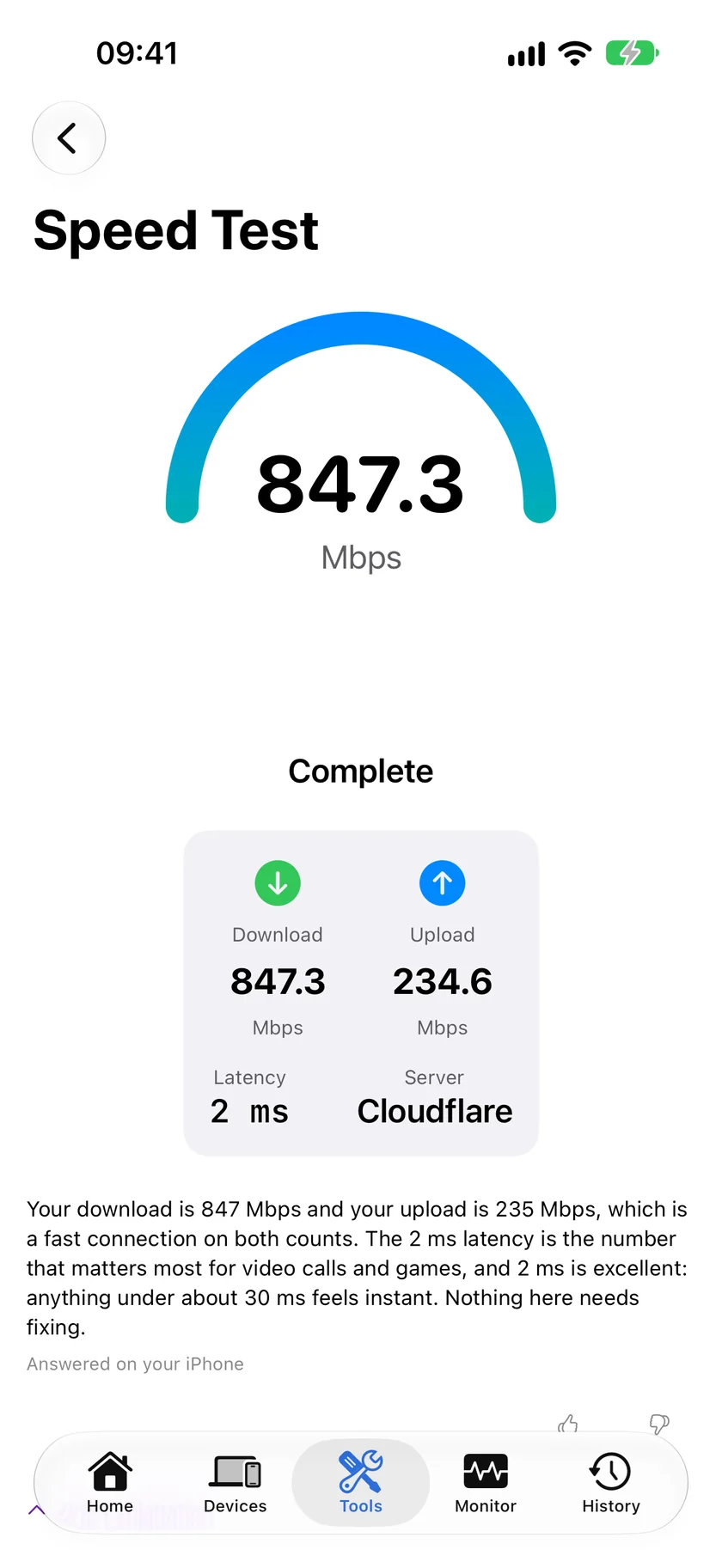
Six parallel connections, and the three numbers that come out of them. A single stream under-reports what the line can actually carry.
Multi-Connection Testing
Six parallel TCP streams saturate even gigabit fiber and fast 5G connections. Get accurate results above 700 Mbps where single-connection tests fall short.
Download & Upload
Separate download and upload measurements so you can see the full picture. Upload speed matters for video calls, cloud backups, and streaming.
Latency Measurement
Raw bandwidth is only half the story. PingKit measures connection latency alongside speed, showing whether your link is responsive enough for real-time tasks.
Speed History
Every test is logged with a timestamp so you can compare results over time and track whether your ISP delivers consistent speeds.
When to Run a Speed Test
Verifying ISP Speeds
Your ISP advertises "up to" a certain speed, but what are you actually getting? Run PingKit's speed test at different times of day to see if your provider delivers during peak hours. If you are consistently getting half the speed you pay for, you have data to support a call to your ISP or a switch to a competitor.
Testing WiFi vs Cellular
Sometimes your iPhone's cellular connection is faster than your WiFi. Run a speed test on both to find out. If WiFi is significantly slower, the bottleneck might be your router placement, channel congestion from neighbors, or an outdated router that cannot keep up with your internet plan.
Before and After Router Changes
Upgrading your router, changing DNS settings, or moving your access point? Run a speed test before you make changes and again after. PingKit's history makes it easy to compare results and confirm whether the change actually improved anything.
Comparing Locations
WiFi speed varies room to room depending on distance from the router, walls, and interference. Walk through your home or office running tests in each spot. You will quickly find the dead zones and the sweet spots, which tells you exactly where a mesh node or extender would help most.
Gaming and Real-Time Apps
For online gaming, latency matters more than raw download speed. A connection with 50 Mbps and 15 ms latency will feel snappier in a competitive match than a 500 Mbps link with 80 ms of lag. PingKit reports latency alongside throughput on every run, so you can tell whether a slow result comes from your line or from the distance to the server. If your speed looks fine but games still feel sluggish, our ping test and MTR tool dig deeper into where the delay is introduced along the route. Session Watch answers the gaming question directly: a free one-minute check grades latency, jitter and packet loss A to F, and with Guardian it measures how much your latency rises while the line is busy.
Video Calls
Zoom, FaceTime, Teams, and Google Meet lean heavily on your upload speed, which is often a fraction of your download speed on cable and DSL plans. If colleagues say you freeze or sound robotic, run a speed test and look at the upload number specifically. Anything below about 3 to 5 Mbps upload with high latency or jitter will cause trouble on group calls. PingKit measures upload as its own metric rather than burying it.
4K Streaming
Streaming 4K HDR from Netflix, Apple TV, or YouTube needs a sustained 25 Mbps or more per stream, and several streams at once multiply that requirement. If video buffers or drops to lower resolution in the evening but tests fine in the morning, you are likely seeing peak-hour congestion. Running PingKit at different times builds a record you can use to confirm the pattern.
Start a Speed Test From Control Center
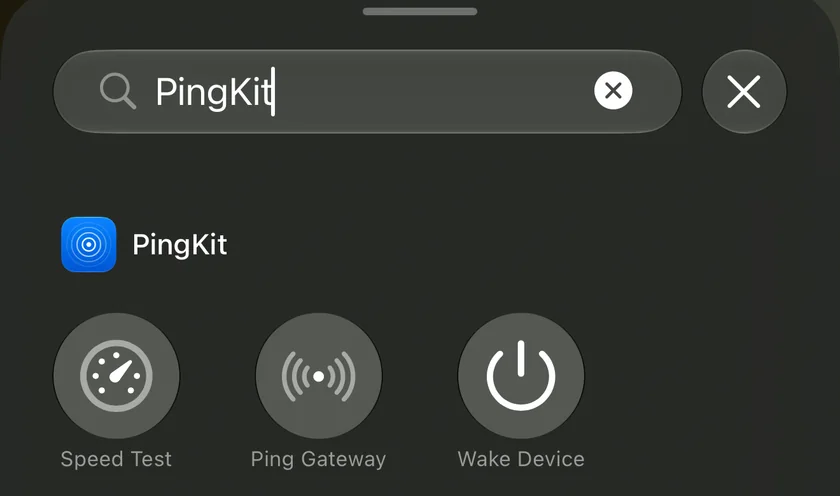
PingKit has three Control Center controls, and one of them is Speed Test. Open Control Center, tap it, and the app opens on the speed test with the run already under way. In the Control Center gallery it is listed as "Run a speed test right from Control Center."
PingKit's Control Center controls, where you add them. Speed Test measures nothing in Control Center itself: it opens PingKit and starts the run immediately.
Ask Siri. Siri does the same thing without Control Center: "Run a speed test with PingKit". The phrase is registered when PingKit is installed, so there is nothing to set up, and the answer comes back without the app opening.
Be precise about what that means, because the wording invites the opposite reading. The control does not measure anything inside Control Center. It opens PingKit, and PingKit starts the test immediately. What you save is the navigation: no Home Screen, no Tools list, no tapping through to find the speed test. It is the ordinary in-app test, so the result lands in your history like any other run, and its progress appears on the Lock Screen and in the Dynamic Island while it runs.
The second control is Ping Gateway. It works the same way, and it resolves your router's address itself, so there is nothing to type. That is the quicker first move when the question is whether the problem is your own router or the line beyond it.
Controls need iOS 18. PingKit itself runs on iOS 17, so on an iOS 17 iPhone you have the app and the speed test but not the Control Center buttons. Both controls are free and neither needs a subscription.
Why Single-Connection Speed Tests Under-Report
This is the single most common reason two speed test apps disagree on the same network. A single TCP connection is governed by TCP congestion control, which ramps throughput up gradually and backs off the moment it detects any packet loss or latency increase. On a slow connection that ceiling is rarely a problem, because one stream can fill the available bandwidth before congestion control intervenes. On a fast connection it becomes a hard limit: a single stream simply cannot accelerate quickly enough to use all of a gigabit fiber or fast 5G link before the test window closes.
The effect grows with speed and distance. The further the test server is from you, the higher the round-trip time, and the more a single TCP connection is throttled by its own window-scaling behaviour. That is why a one-connection test might report 180 Mbps on a line that is genuinely delivering 900 Mbps. The line is fine; the measurement method is the bottleneck.
PingKit opens six parallel connections and adds their throughput together. This mirrors how your network behaves in real life, where dozens of apps and devices share the link at once, and it is the same approach professional and ISP-grade testing services use. We picked six because it reliably saturates consumer and prosumer links without overstating results through excessive parallelism. The goal is an honest measurement of what your connection can actually deliver, not an inflated headline number.
Rule of thumb: if PingKit reports a higher number than another app on the same network, it is usually because the other app used a single connection and could not fill your link. If PingKit reports a lower number, check whether the other app quietly selected a much closer server, or whether something on your network was using bandwidth during the test.
PingKit vs Other Speed Test Apps
There are plenty of free speed test apps in the App Store. Most do one thing and surround it with advertising. Here is an honest comparison of where PingKit differs from the typical free speed-test app.
Capability
PingKit
Typical free speed-test app
Multi-connection accuracy
Six parallel connections
Often a single connection
Ads
None
Banner and interstitial ads common
Account required
No account, no sign-up
Often required for history
Bundled tools
19 network tools in one app
Speed test only
Scheduled / automatic tests
Yes, via the free Mac Agent
Manual runs only
We are not claiming PingKit is the only good speed test on iPhone. The point is that a speed test on its own rarely answers the question you actually have, which is usually "why is my connection slow?" Bundling the speed test with traceroute, ping, MTR, DNS lookup, port scanning, and continuous monitoring means you can go from symptom to cause without juggling five separate apps, each with its own ads and account.
Troubleshooting Your Results
The speed test shows slower than my plan
First, rule out the measurement method. If you are comparing against a single-connection app, PingKit's multi-connection result is the more accurate one. If PingKit itself shows well below your plan, check the basics: are other devices streaming or backing up to the cloud, is your iPhone on the 2.4 GHz band when 5 GHz is available, and how far are you from the router? Wire a computer directly to the modem if you can and compare. A large gap between wired and WiFi results points to a WiFi problem; a large gap on a wired connection points to the ISP. Our guide on how to tell if your ISP is throttling walks through the next steps.
Results vary between runs
Some variation is normal. Shared media like cable and 5G fluctuate with how many neighbours are online, and your iPhone's radio conditions change as you move. To get a representative figure, run three or four tests in a row and look at the range rather than a single number. PingKit's history makes this easy because every run is timestamped. Wildly inconsistent results, especially with spikes in latency, often indicate interference or a flaky connection rather than a true bandwidth problem, which is where our connection monitor earns its keep by watching the link continuously instead of for a few seconds.
WiFi vs cellular
If WiFi tests slower than cellular on the same phone in the same spot, your internet plan is probably not the limiting factor; your WiFi is. Common causes are an old router that cannot handle your plan's speed, channel congestion in dense buildings, and physical distance or walls between you and the access point. Test in the same room as the router to confirm, then test from where you actually use the phone to measure the real-world drop-off.
Test against a nearby server
Distance to the test server adds latency and can lower the result on a single-connection test in particular. When you want to compare apps fairly, make sure they are both testing against a server in roughly the same location. A test to a server on another continent will always look slower than one across town, and that difference reflects geography rather than the health of your connection.
Have PingKit Explain the Result
A finished speed test in PingKit 3.0 carries a button that reads Explain This Result. Tap it and you get a plain-language reading of the numbers you just got, on the same screen, under the result.
It never fires by itself. No commentary appears under your results uninvited, and that holds for subscribers too. An explanation is written only when you tap, and the only thing sent is the result text the tool already showed you.
The answer can come from three different places, and every answer is labeled with which one wrote it. PingKit tries the model on your iPhone first, because that rung needs no network at all, which matters when the reason you opened a network app is that your connection is down. Apple's Private Cloud Compute is the second rung, and it is what a PingKit Guardian subscription ($2.99 a month or $24.99 a year on iPhone) adds here. PingKit's own service is the last resort, and it is the only rung that asks your permission first.
The button itself is free. Without a subscription you get 15 AI interactions a week across every AI feature in the app, no more than five of them in a day, and an answer written on your iPhone spends none of that allowance. The same button sits on 18 tools, so Ping, Traceroute, MTR and DNS Lookup explain themselves the same way. It is an iPhone and iPad feature; the Mac Agent does not have it.
More Than Just Speed
A speed number alone does not tell you much. PingKit combines speed testing with 18 other network diagnostic tools. If your speed test shows unexpectedly low results, jump into Connection Monitor for continuous stability tracking, run a Traceroute to see where packets are being slowed, or use Smart Diagnostics for an automated analysis of what is wrong and how to fix it. Everything works together so you get answers, not just numbers.
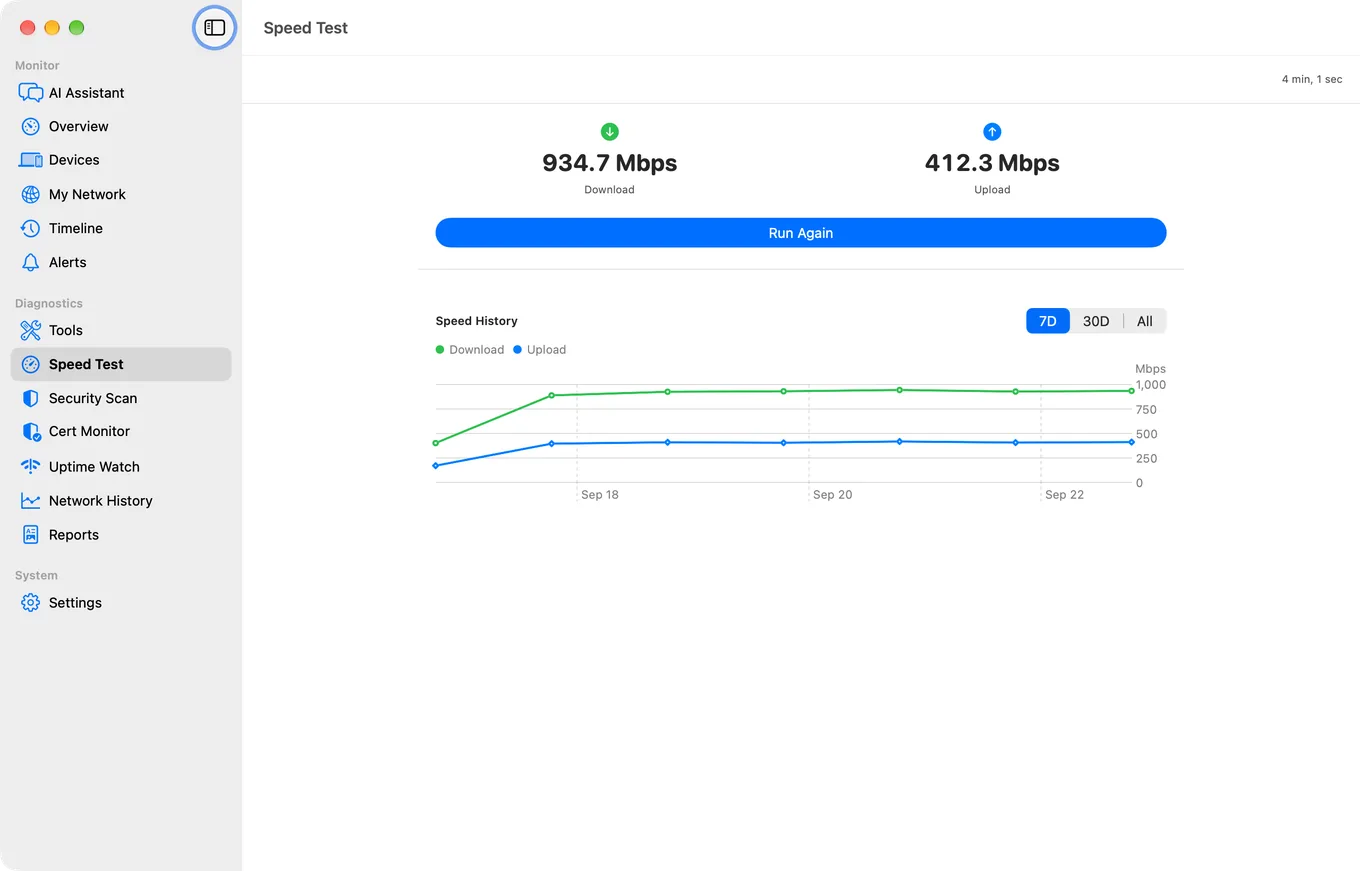
Manual tests are great for spot checks, but they only capture the moment you happen to run them. The slow-down you want to catch usually happens while you are asleep or away from your phone. PingKit Guardian ($2.99/mo or $24.99/yr) shows the results of scheduled speed tests that the free PingKit Mac Agent runs on a recurring basis while the Mac is awake, building a running record of your connection without you lifting a finger. Guardian also raises the allowance for AI-powered explanations of your results; the Mac Agent's own runs and its alerts when your connection degrades are free. The speed test itself stays completely free; Guardian is for people who want the Mac's autopilot results on their iPhone. How the history reaches your iPhone, and why the phone cannot do it alone.
A scheduled run on the Mac. Download and upload are separate numbers and latency is a third, which is what a single figure hides.
Frequently Asked Questions
How accurate is PingKit's speed test on iPhone?
PingKit uses six parallel TCP connections to saturate your link, the same technique professional speed-testing services use. A single connection often cannot fill a fast pipe, which is why many apps under-report on connections above 200 Mbps. The multi-connection approach gives accurate results even on gigabit fiber and fast 5G links exceeding 700 Mbps.
Why does PingKit show different results than other speed test apps?
Most speed test apps use a single TCP connection, which is limited by congestion control and cannot fully utilize fast links. PingKit opens multiple parallel connections to measure your true maximum throughput. If PingKit shows higher speeds, it likely reflects your actual bandwidth more accurately. If it shows lower speeds, check whether the other app selected a closer server or whether something on your network was using bandwidth during the test.
Can I test WiFi speed vs cellular speed on iPhone?
Yes. Run a speed test on WiFi, then switch to cellular and run it again. PingKit logs every result with a timestamp, so you can compare results over time in your speed history.
What is a good internet speed for my iPhone?
For general browsing and social media, 25 Mbps is plenty. HD video streaming needs 10 to 25 Mbps, while 4K streaming wants 25 Mbps or more per stream. Video calls work best with at least 3 to 5 Mbps upload. Online gaming depends more on low latency than raw speed. PingKit tests all three metrics, so you can judge whether your connection fits your needs.
How many times should I run a speed test?
Run three or four tests in a row and look at the range rather than any single result. Shared connections like cable and 5G fluctuate naturally, so a small spread is normal. A large, erratic spread, especially with latency spikes, usually points to interference or a flaky link rather than a true bandwidth limit.
Does PingKit's speed test use a lot of data?
A speed test transfers data to measure throughput, so on cellular it will consume some of your data allowance, more on faster connections. This is true of every speed test app. If you are on a metered plan, prefer testing over WiFi, and avoid running back-to-back tests unnecessarily.
Why is my upload speed so much lower than download?
Asymmetric speeds are normal on most cable and DSL plans, which are designed to prioritize download. Fiber connections are often symmetric. Low upload only becomes a problem for video calls, cloud backups, and live streaming. PingKit reports upload as its own metric so you can see it clearly rather than having it averaged into a single figure.
Can PingKit run speed tests automatically?
Yes, with the free PingKit Mac Agent. The iPhone runs tests on demand; the Agent runs scheduled, automatic speed tests on the Mac, so your connection is checked on a recurring basis and logged to history without manual input. Guardian shows those results on your iPhone.
Is PingKit's speed test free?
Yes. The speed test and all 19 network tools in PingKit are completely free, with no ads and no account required. The AI explanation of a result is free too. The optional Guardian subscription adds Apple Private Cloud Compute as a second rung for AI answers, and Mac monitoring and the free Mac Agent's scheduled speed test results on your iPhone, but the speed test itself is fully functional without it.
The Mac Agent's monitoring on your iPhone, scheduled speed test results, trend charts, Uptime Watch for ten sites and AI answers from Apple Private Cloud Compute. $2.99 a month or $24.99 a year on iPhone and Mac, with a 1-week free trial.