Port Forwarding for PS5, Xbox & Nintendo Switch
"Strict NAT" or "Moderate NAT" on your console usually means one thing: your router isn't letting inbound connections through for matchmaking and voice chat, so you get dropped lobbies, can't join friends, or get flagged as a bad host. Forwarding the right ports fixes it. Here are the exact ports for each console, sourced from each manufacturer's own support documentation, plus the two steps most guides skip: reserving a stable local IP first, and actually verifying the forward worked afterward.
Before You Forward Anything: Reserve a Static Local IP
Port forwarding rules point at a specific device's local IP address. If your router hands out IPs dynamically (the default almost everywhere), your console's IP can change after a reboot or power outage - silently breaking the forward you just set up. Reserve a fixed local IP for your console first; see How to Set a Static IP Address for the exact steps. Find your console's current IP under its own network settings, or check PingKit's LAN Scanner to see every device on your network alongside its local IP.
PS5 Ports
Per PlayStation's official support documentation:
| Protocol | Ports |
|---|---|
| TCP | 80, 443, 3478, 3479, 3480 |
| UDP | 3478, 3479, 49152-65535 |
Xbox Series X|S Ports
Per Microsoft's Xbox network support documentation:
| Protocol | Ports |
|---|---|
| UDP | 88, 500, 3074, 3544, 4500, 9002 |
| TCP + UDP | 53, 3074 |
| TCP | 80 |
Microsoft's support pages update occasionally - if these don't resolve your NAT issue, cross-check the current list at support.xbox.com before assuming something else is wrong.
Nintendo Switch Ports
Nintendo's official approach is different from Sony's and Microsoft's: instead of a short list of specific ports, Nintendo's support documentation specifies a single wide range.
| Protocol | Ports |
|---|---|
| UDP | 1024-65535 |
The Switch dynamically selects a port within that range for each online session rather than using one fixed number, which is why the official guidance is a range instead of a list. Forward the full range to the console's reserved IP.
Setting Up the Forwarding Rule
The router-side steps are the same regardless of which console you're forwarding for - log into your router's admin page, find the port forwarding section, and create a rule pointing each port (or range) at your console's reserved local IP. If you haven't done this before, How to Port Forward on Your Router walks through it screen by screen for the major router brands.
Verifying It Actually Worked
This is the step most guides skip, and it's why people re-do the same forwarding rule three times without realizing it already worked. There's an important distinction between TCP and UDP here:
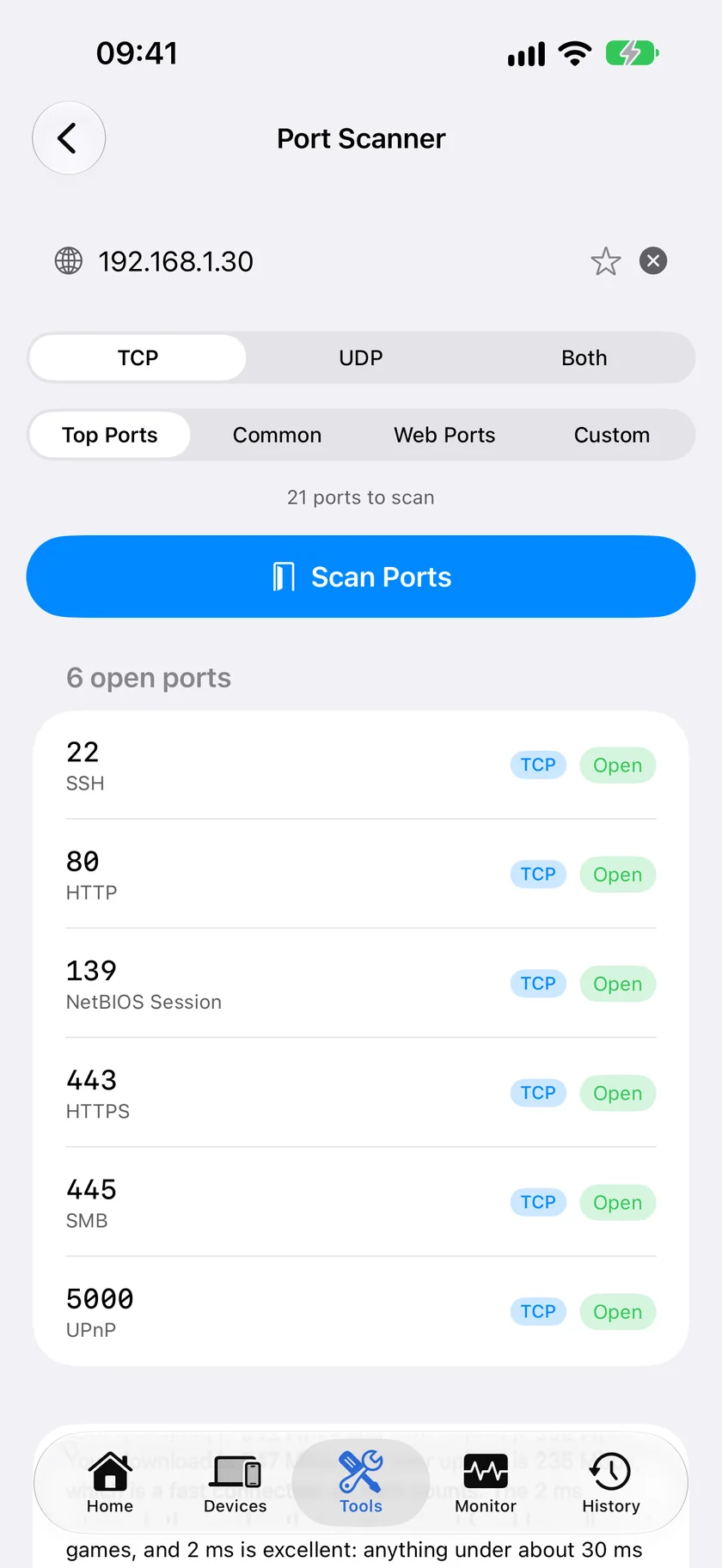
- TCP ports (PS5's 80/443/3478-3480, Xbox's 53/80) can be verified directly: run PingKit's Port Scanner against your public IP from cellular data (WiFi off) and confirm those ports show open.
- UDP ports - which make up the bulk of every console's list, and all of the Switch's range - can't be reliably confirmed with a phone-based scanner. UDP has no connection handshake to check against, so a UDP "scan" can't distinguish a genuinely open port from one that's simply not responding. This isn't a PingKit limitation specifically; it's a property of UDP itself.
For UDP and overall NAT type, trust the console. Each console has a built-in network test built for exactly this - PS5 and Xbox report your NAT type directly in network settings, and Switch reports a similar internet connection test result. That's the authoritative check for whether the forward is actually working end to end, since it's testing from the same place the game traffic will actually go.
Checking a port from the phone, against a device on your own network, is one screen: Port Scanner App for iPhone
Still Showing Strict/Moderate NAT?
- Double NAT. If you have a separate modem and router, or your ISP's gateway is also acting as a router behind your own router, port forwards on the wrong device won't reach the console. Check the port forwarding guide's double-router section.
- CGNAT. Some ISPs, especially mobile and some fiber providers, don't give you a real public IP at all - forwarding is impossible without a static IP add-on. Compare your router's public IP (Network Info) against an external "what's my IP" result; if they don't match, this is likely the cause.
- The console's IP changed. If the static reservation from step one didn't actually take, the console may have picked up a new DHCP address that the forwarding rule no longer points to.
Frequently Asked Questions
What ports do I need to forward for PS5?
TCP 80, 443, 3478, 3479, 3480, and UDP 3478, 3479, 49152-65535, per PlayStation's official support documentation.
What ports do I need to forward for Xbox Series X|S?
UDP 88, 500, 3074, 3544, 4500, 9002; TCP+UDP 53 and 3074; and TCP 80. Confirm against support.xbox.com, since this list has changed before.
What ports do I need to forward for Nintendo Switch?
UDP 1024-65535 - a wide range rather than specific ports, since the Switch picks a port within it dynamically for each session.
Can PingKit verify my console's ports are actually open?
For the TCP ports on each list, yes - Port Scanner can confirm them from outside your network. UDP ports can't be reliably scanned by any phone-based tool; use the console's own built-in NAT/network test for those.
Verify Your Forwarded Ports
PingKit's Port Scanner confirms TCP ports are open from outside your network - free, no ads, alongside 18 more network tools.
Download PingKit FreeRelated Articles
- How to Port Forward on Your Router
- How to Set a Static IP Address on Your Home Network
- How to Reduce Ping for Gaming
- PingKit for Gamers
- Port Scanner App for iPhone
- How to Detect Double NAT and CGNAT From Your iPhone
- PS5 Keeps Disconnecting From WiFi: How to Prove Where It Drops
- Nintendo Switch Keeps Disconnecting From WiFi: Find the Cause