How to See Every Device on Your Network from a Mac (2026)
Short version. Four approaches, and they genuinely find different things: your router's DHCP list (most complete), arp -a in Terminal (free, instant, cryptic), a scanner app (names devices properly), or continuous monitoring (tells you when something changes). Start with the router, because every device has to ask it for an address.
No single method sees everything, which surprises people. A device that is asleep will not answer a scan but will still hold a DHCP lease. A device with a static address never appears in the DHCP list. Using two methods together is how you get a real picture.
Full disclosure: I build PingKit Agent, so weigh the recommendation accordingly. The limits section is not padding, and there is a whole category of Mac network tool below that PingKit deliberately is not.
1. Your Router's DHCP Client List
The most complete source, and free. Every device that joined had to request an address, so the router knows about all of them, including ones currently asleep. Open your router's admin page, usually at 192.168.1.1 or 192.168.0.1, and look for Attached Devices, DHCP Clients or similar.
Limitation: it lists MAC addresses and often unhelpful hostnames, and modern phones randomise their MAC per network, so the list accumulates entries you cannot identify. Devices with static addresses may not appear at all.
2. arp -a in Terminal
Free and instant. Open Terminal and run arp -a. You get every neighbour your Mac has recently communicated with, with real MAC addresses.
Limitation: the ARP table only contains devices your Mac has actually talked to recently, so it is a partial view rather than a full inventory. To populate it first, ping the broadcast address: ping -c 3 192.168.1.255 (adjust for your subnet), then run arp -a again. Output is IP and MAC only, with no idea what anything is.
3. A Scanner App
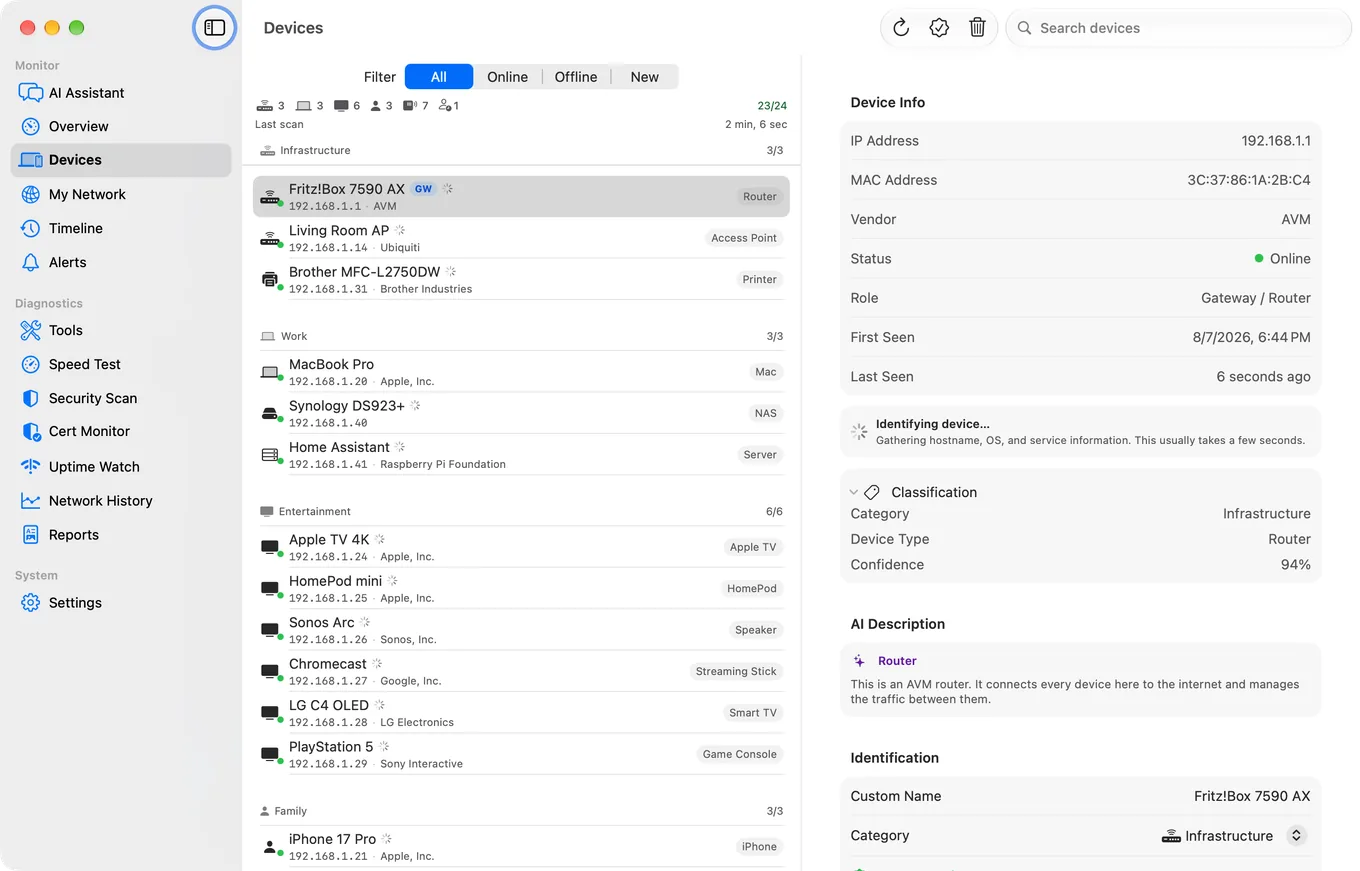
Sweeps the whole subnet and, importantly, tries to work out what each device is. Good identification uses several signals together: the vendor prefix from the MAC address, Bonjour and SSDP service advertisements, hostnames, and patterns of open ports. A device announcing AirPlay is a speaker or a TV; one advertising IPP is a printer.
Limitation: sleeping devices may not answer, so a scan can show fewer devices than the router does. And macOS 27 hides the system ARP table from apps that are not part of macOS, so scanners that rely on it, PingKit Agent included, show no MAC addresses there and lose the vendor prefix as a signal.
4. Continuous Monitoring
The others answer "what is here now". This one answers "what changed since yesterday", which is usually the real question. PingKit Agent keeps sweeping on an interval you set and raises alerts for a new device, a device going offline or coming back (off by default; switch it on in the Agent's Settings), and a device changing the services it advertises.
Which to Use
| You want | Use |
|---|---|
| The most complete list, free | Router DHCP client list |
| An instant answer, no install | arp -a in Terminal |
| Device names rather than MACs | A scanner app |
| To know when something appears | Continuous monitoring |
| To block a device | Your router. Nothing else can |
Before assuming an unknown device is an intruder. Count what you own first, including everything with WiFi you have stopped thinking about: thermostat, doorbell, TV, games console, printer, smart plugs, a robot vacuum. The total is almost always higher than people guess, and MAC randomisation makes your own devices look unfamiliar.
Option four, without the terminal. It keeps the list between scans, so a device that appears at 3am is a row with a time on it rather than something you had to be looking for: PingKit Agent for Mac
Honest Limits
- No method is complete on its own. Cross-reference the router list with a scan.
- Sleeping devices are invisible to scans.
- Device naming is inference, not certainty. Unusual hardware stays unlabelled.
- PingKit Agent sweeps the local segment, not arbitrary ranges, and pauses when the Mac sleeps.
- Continuous alerting is free in PingKit Agent; Guardian adds the Agent's dashboard to PingKit on your iPhone. macOS 15 or later.
Frequently Asked Questions
How do I see all devices on my network from a Mac?
Start with your router's DHCP client list, which is the most complete because every device had to request an address. Then cross-reference with arp -a in Terminal or a scanner app, since each method finds a slightly different set.
What does arp -a do on a Mac?
It prints the ARP table: every network neighbour your Mac has recently communicated with, with IP and real MAC addresses. It is a partial view, so ping the broadcast address first, for example ping -c 3 192.168.1.255, to populate it.
Why does my network scanner show fewer devices than my router?
Sleeping or low-power devices hold a DHCP lease but do not answer scan probes, so the router remembers them while a scan misses them. Devices with static addresses can show the opposite pattern.
Can I see MAC addresses of devices from a Mac?
Yes. macOS exposes the ARP table, so arp -a can read real MAC addresses, and so can Mac scanner apps on macOS 15 and 26. macOS 27 hides the system ARP table from apps that are not part of macOS, so scanners that rely on it, PingKit Agent included, show no MAC addresses there; your router's device list always has them. iPhone apps cannot, because iOS returns a placeholder address for network peers.
How do I block a device from my network?
Only your router can do this. Look for MAC filtering, device blocking or a similar option in its admin interface. No scanner or monitoring app can block a device, because blocking requires sitting in the traffic path.
Names, not MAC addresses
Continuous discovery that identifies devices from vendor, Bonjour, SSDP and port signals, and alerts when something new appears.
Get PingKit Agent for Mac