Traceroute on Mac (2026): Terminal Commands, Asterisks and MTR
Short version. Open Terminal and run traceroute apple.com. macOS ships it, so there is nothing to install and no sudo. Each line is one router on the way, with three round-trip times; an asterisk is a probe that got no answer within five seconds, and on its own it is usually harmless. Network Utility, which had a Traceroute tab, is gone from current macOS. For packet loss over time, add MTR with Homebrew.
Full disclosure: I build PingKit Agent, so weigh the last section accordingly. Everything before it works with what is already on your Mac.
How to Run Traceroute on a Mac
- Open Terminal: press Command and Space, type Terminal, press Return.
- Type
traceroute, a space, and the host you want to reach, then press Return:
traceroute apple.comThe trace runs hop by hop and stops when it reaches the destination. Press Control and C to stop it early. The flags worth knowing, all from the macOS manual page (man traceroute):
| Command | What it does |
|---|---|
traceroute -n apple.com | Numbers only, no name lookup for each hop. Much faster when hops have no names. |
traceroute -I apple.com | Sends ICMP echo instead of the default UDP probes. Try it when a trace ends in asterisks. |
traceroute -m 20 apple.com | Stops after 20 hops instead of the default 64. |
traceroute -q 1 -w 2 apple.com | One probe per hop instead of three, and a two-second wait instead of five. A quick look. |
traceroute6 apple.com | The same over IPv6. |
No sudo is needed: macOS installs traceroute with the privileges it needs to send its probes.
Reading the Output
$ traceroute -n 198.51.100.80
traceroute to 198.51.100.80 (198.51.100.80), 64 hops max, 40 byte packets
 1  192.168.1.1  2.913 ms  1.874 ms  1.702 ms
 2  * * *
 3  203.0.113.17  9.204 ms  8.977 ms  9.311 ms
 4  198.51.100.42  11.882 ms  10.954 ms  11.106 ms
 5  198.51.100.80  12.401 ms  12.118 ms  12.596 ms
An illustrative trace, with addresses from the ranges set aside for examples. The first line says where it is going and the limit: 64 hops. Each numbered line after it is one router, with the round-trip time of each of the three probes. Hop 1 is your own router. Hop 2 answered none of the three probes, which is why it shows three asterisks, and the trace carries on regardless because hop 3 answered. The last line is the destination.
Without -n, each line also shows the router's name where it has one, which often names the provider and the city. That is the main reason to use Terminal over most apps, which show addresses only.
Why Traceroute Shows Asterisks on a Mac
An asterisk means one probe got no reply within the wait time, five seconds by default on macOS. There are three common reasons, and only one of them is a fault:
- A router that does not answer probes. Many routers are configured not to reply, or to reply only so often. If later hops answer, the path through that router works. Ignore it.
- A firewall dropping the probes. macOS sends UDP probes to high port numbers (33434 and up) by default, and some networks drop those. If the asterisks run to the end of the trace, try
traceroute -I, which uses ICMP and often gets through. - The destination is unreachable. If nothing answers past a certain hop with either probe type, and the site does not load either, the path is broken at or after the last hop that answered.
Because the default limit is 64 hops, a trace that ends in asterisks keeps going for a long time. Stop it with Control and C, or set a lower limit with -m.
The misreading that ruins evidence
Loss at a middle hop that does not appear at later hops is not a fault. Routers deprioritise generating replies to probes, because forwarding traffic is their actual job. A hop showing 40% loss while every hop after it shows 0% is rate limiting its own replies and working correctly.
The pattern that matters is loss beginning at a hop and continuing through every subsequent hop including the destination. Sending an ISP a screenshot of the first kind is a reliable way to have a ticket closed, and they will be right to close it. The same goes for latency: a single slow hop that does not slow the hops after it is harmless.
| What you see | What it means |
|---|---|
| Asterisks at one hop, answers after it | That router does not reply to probes. Ignore |
| Loss starting at a hop, continuing to the end | Real problem at or before that hop |
| First hop slow | Your local network or WiFi |
| Latency jumps and stays high | Usually a long physical link, often expected |
| Path changes between runs | Normal. Routing is dynamic |
| Asterisks all the way to the end | Probes blocked (try -I), or the destination is unreachable |
What Replaced Network Utility
Network Utility had a Traceroute tab. Apple deprecated the app in macOS 11 Big Sur, and it is not on current macOS. Its traceroute is the traceroute command above; most of its other tabs map to ping, netstat, whois and nslookup. If you want a window rather than a command, Network Utility replacements for Mac covers the free options, including the one below.
MTR on a Mac
Traceroute is one snapshot. When the problem comes and goes, you want MTR, which maps the path and then keeps probing every hop, so each one builds up a loss percentage and latency over hundreds of samples. macOS does not include it; Homebrew does:
brew install mtr
sudo mtr 1.1.1.1
It needs sudo because it uses raw sockets. For something you can paste into a support ticket, run it in report mode for a fixed number of cycles:
sudo mtr -r -c 100 1.1.1.1Read it with the rules above: only loss that starts at a hop and carries through to the destination is a fault.
Traceroute in PingKit Agent
If you would rather not remember flags, PingKit Agent, a free Mac menu bar app, has a Traceroute in its Tools pane beside ping, DNS lookup, a port scanner and a speed test.
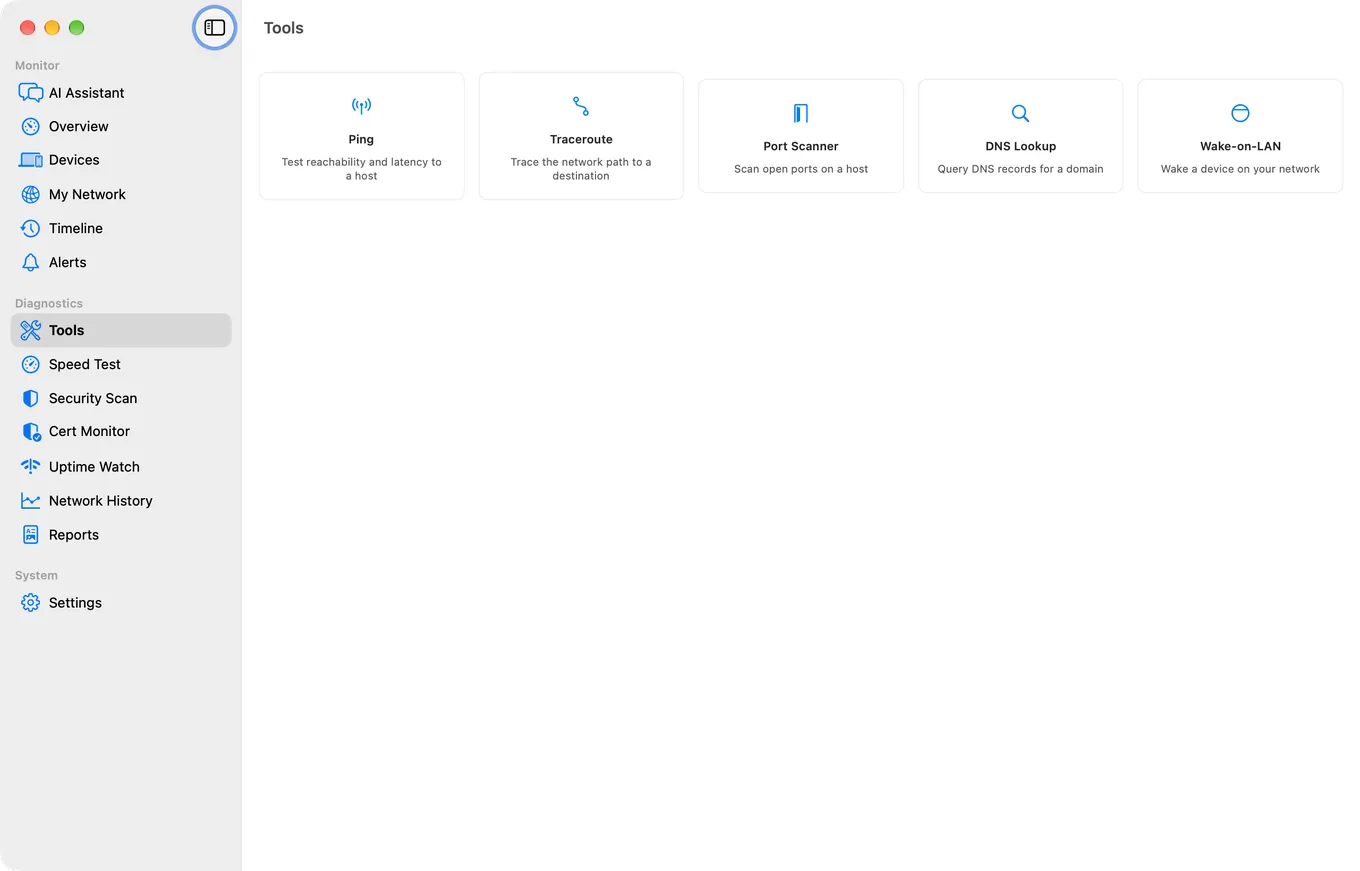
It sends ICMP probes, one per hop with a second try when the first gets no answer, up to 30 hops by default, and gives up after five silent hops in a row rather than running on to 64. For each public hop it adds a location and the network it belongs to. It does not look up hop names, so for those, use Terminal.
What the Agent adds that Terminal does not is history. While the Mac is awake it checks your connection every 30 seconds by default and writes every outage to its Timeline with the time, and it can alert you to a latency spike, so the record of an intermittent fault exists without you remembering to start a capture. That is a connectivity check, not a continuous traceroute.
Honest Limits
- The Agent has no MTR. For per-hop loss over time on a Mac, use
mtrfrom Homebrew. PingKit's MTR is on iPhone and iPad. - No hop names in PingKit. Command line traceroute resolves them.
- Monitoring pauses while the Mac sleeps.
- macOS 15 or later for the Agent.
Frequently Asked Questions
How do I run traceroute on a Mac?
Open Terminal (Command and Space, then type Terminal) and run traceroute followed by a hostname or IP address, for example traceroute apple.com. It is built into macOS and needs no install and no sudo. Add -n to skip the name lookups and get the result faster.
Why does traceroute show asterisks on a Mac?
Each asterisk is a probe that got no answer within five seconds, the macOS default. One router showing asterisks while later hops answer is usually a router that does not reply to probes, which is harmless. Asterisks all the way to the end mean the probes are being dropped, often because a firewall blocks the UDP ports macOS uses by default; try traceroute -I to send ICMP instead.
What replaced Network Utility on a Mac?
Apple deprecated Network Utility in macOS 11 Big Sur and it is not on current macOS. Its Traceroute tab is the traceroute command in Terminal. For a window instead of a command, there are free apps, including PingKit Agent, whose Tools pane has a traceroute.
Does macOS have traceroute built in?
Yes, at /usr/sbin/traceroute, with traceroute6 for IPv6. By default it sends three UDP probes to each hop, waits up to five seconds for each, and stops at the destination or after 64 hops.
How do I install mtr on a Mac?
Install Homebrew, then run brew install mtr, and start it with sudo, for example sudo mtr 1.1.1.1. It needs elevated privileges because it uses raw sockets. For a report you can paste into a support ticket, run sudo mtr -r -c 100 1.1.1.1.
Why does traceroute show packet loss at one hop but not the destination?
That router is rate limiting its replies to probes rather than dropping traffic. Routers prioritise forwarding over answering diagnostics. Only loss that begins at a hop and continues through to the final destination indicates a real fault.
What is the difference between traceroute and MTR?
traceroute maps the path once. MTR maps it and then keeps probing every hop, reporting latency and packet loss per hop over many samples, which makes intermittent problems visible where a single traceroute run would miss them.
Traceroute without the flags, history without the capture
A traceroute in the Tools pane, and connectivity checks while the Mac is awake with every outage on a timeline. Free, macOS 15 or later.
Get PingKit Agent for Mac