Best WiFi Analyzer Apps for iPhone (2026)
Read this first. iOS does not let App Store apps scan nearby WiFi networks and channels the way Android does - Apple locked that API down. Any iPhone "WiFi analyzer" claiming a full channel graph is either using a loophole that breaks every iOS update or showing you stale data. The apps below work within iOS reality: connection quality for the network you're on. Note that signal strength is not one of them: the API returns a placeholder to ordinary App Store apps, and merely identifying your current network at all costs a Core Location prompt, which is why some of these apps ask for your location on first launch. Here is the full breakdown of what iOS allows. PingKit's WiFi Analyzer is built around those real limits.
Apple removed third-party access to nearby networks, their channels and their signal strength years ago, so no App Store app can show you any of it. That is the whole answer, and it is why "WiFi analyzer" means something different on iPhone than on Android. On Android, a WiFi analyzer draws a graph of every nearby network and which channel it's on, so you can pick a clear channel. On iPhone that data is simply gone, whatever an app's screenshots suggest.
So the useful question is not "which app has the best channel graph", it is what iOS still allows and what to use instead. PingKit's WiFi analyzer for iPhone measures the part that is left: connection stability, speed, and every device on your network.
What You Can and Can't Measure on iOS
Here's the real capability split on a stock iPhone. The first row is the one almost every other listicle gets wrong:
| Measurement | Possible in an App Store app? |
|---|---|
| Signal strength (RSSI) of the network you're on | No (returns a dummy value to normal apps) |
| Your network's name (SSID) | Only after a Core Location prompt |
| Your connection's band (2.4 / 5 / 6 GHz) and channel | No (iOS does not expose band/channel to apps) |
| Every nearby network and its channel | No (Apple-restricted) |
| Channel-occupancy / interference graph | No |
| Latency, jitter, packet loss | Yes |
| Download and upload throughput | Yes |
| Which devices are on your network | Yes |
Why "signal strength" is the row that matters
The API an iPhone app would use is NEHotspotNetwork. It exposes a
signalStrength property, which is why so many apps appear to show you
bars or a dBm figure. Outside of hotspot-helper apps, which are a special
entitlement class ordinary App Store apps do not get, that property returns a
fixed placeholder rather than a measurement. An app can read it. It just isn't
telling you anything about your Wi-Fi.
There is a second gate on top of it. Since iOS 13, even fetching the current network at all requires Core Location authorization, so an app has to ask for your location before it can tell you your own network's name. Grant it and you get the SSID. You still do not get a real signal reading.
This is the difference between iPhone and Mac, and it trips people up constantly: macOS still reports genuine RSSI, noise and SNR, which is why checking signal strength on a Mac works exactly the way you would expect and the same task on an iPhone does not. If a page promises you a live dBm readout on iOS, that is the tell.
To get a true channel survey you need an Android phone, a laptop, or a dedicated analyzer. On iPhone, the productive workflow is to stop chasing a number iOS will not give you and measure your actual connection quality in each room instead. That turns out to be the more useful measurement anyway, for a reason worth being blunt about: signal strength is a proxy, and the thing it is a proxy for is whether pages load and calls hold up. You can measure that directly.
The Apps Worth Having
PingKit WiFi Analyzer
Our app. PingKit shows no signal strength meter, because there is no real reading to show: the placeholder above is all iOS hands an ordinary app. It also does not prompt for Core Location just to read your network's name, which is the one thing that prompt would buy. iOS exposes neither band nor channel to any app, so for those check your router's admin page. What PingKit measures instead is connection quality: latency, jitter, packet loss and throughput. The advantage is breadth: in the same app you can run a speed test, scan the LAN to see what's competing for airtime, and run a ping/jitter test to prove whether a weak signal is actually hurting performance. Free, no ads.
Apple AirPort Utility
Apple's own app hides a Wi-Fi scanner: install it, then enable Settings → AirPort Utility → Wi-Fi Scanner. It's the one Apple-sanctioned way to see nearby networks and their RSSI, though it's bare-bones and gives no guidance.
Network Analyzer
A long-standing, technical iOS app with a deep tool set (LAN scan, ping, DNS, port scan). Strong if you want raw detail; the polished features sit behind a paid tier.
No iPhone app can read signal strength, so the useful measurement is the one you can actually take: latency, jitter, packet loss and throughput, free in PingKit. Get PingKit for iPhone
How to Actually Fix WiFi Coverage on iPhone
Every "walk around watching the signal bars" guide written for iPhone is describing an instrument you do not have. Here is the version that works with what iOS actually exposes. It takes about ten minutes and it produces a better answer than a channel graph would, because it measures the thing you care about rather than a predictor of it.
- Pick a fixed target and stick to it. Use the same host for every reading, ideally your router's own address, so you are comparing rooms rather than comparing internet conditions. Find your router's IP first if you don't know it.
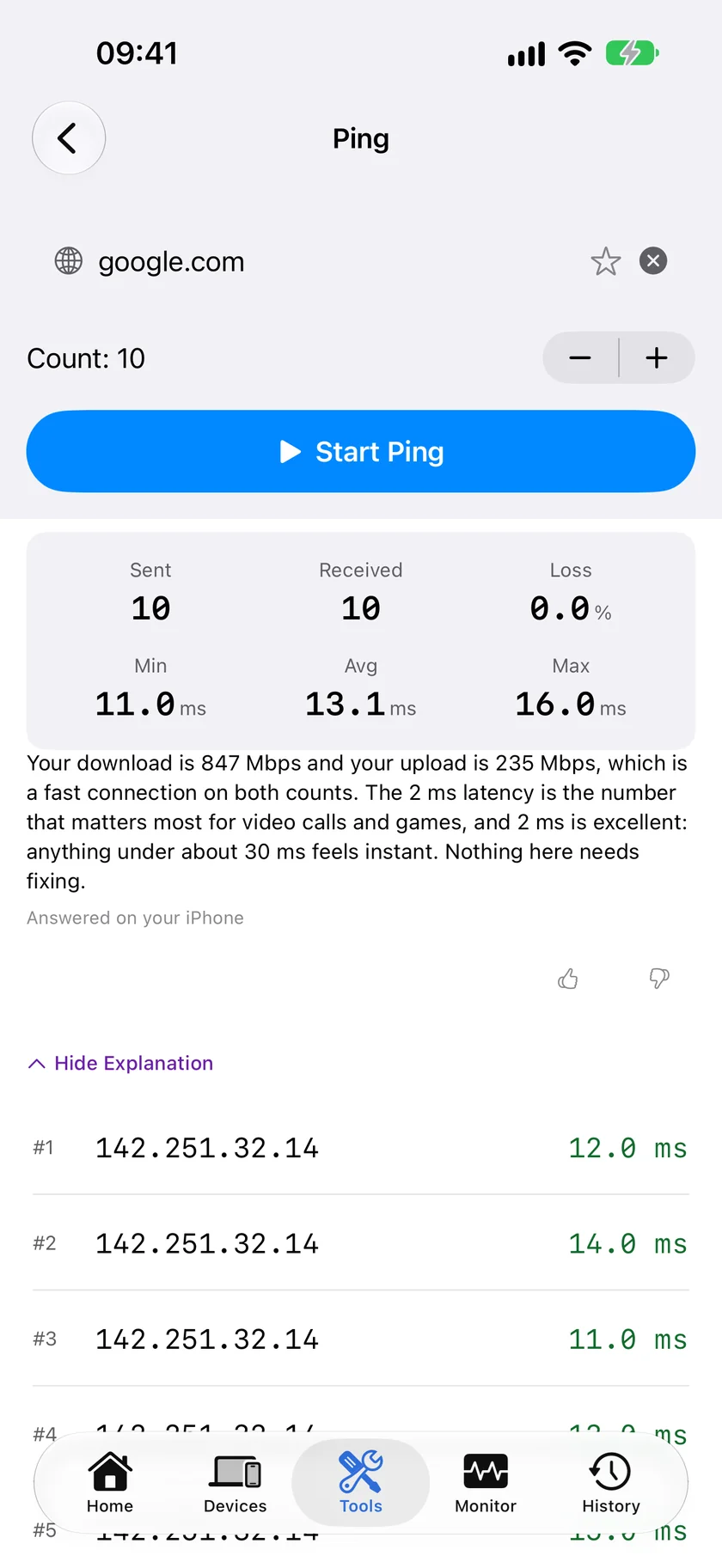
- Take a baseline in the same room as the router. Run a ping test and note latency, jitter and packet loss. This is what "good" looks like on your network, and every later reading is relative to it.
- Repeat the same test in each room. Latency creeping up is normal. What marks a genuine coverage problem is jitter climbing and packet loss appearing at all: a room that loses packets to its own router is a room with a Wi-Fi problem, no signal meter required.
- Confirm the bad rooms with throughput. Run a speed test where the ping test looked worst. Loss plus a large throughput drop is coverage. Clean pings with slow throughput is usually contention or the connection itself, not distance.
- Rule out the neighbours before moving furniture. Run a LAN scan to see how many devices are actually competing for airtime. A dozen idle devices are fine; a dozen busy ones are not, and that is a different problem with a different fix.
- Then act. Reposition the router higher and more central, or add a mesh node where loss first appears, and re-run the same test from the same spots to confirm it worked.
5GHz vs 2.4GHz: 5GHz is faster but fades faster through walls, so in a far room your phone may have quietly dropped to 2.4GHz. iOS will not tell an app which band you are on. The tell is a large throughput drop with latency and loss staying clean, which is the opposite pattern to a true coverage problem. Your router's admin page will confirm which band the phone is associated with. More on the tradeoff in 2.4GHz vs 5GHz.
Is It Even Your WiFi?
Worth ruling out before you buy a mesh node. If the readings are equally bad in every room including the one with the router in it, the Wi-Fi is not your problem and better coverage will not fix it. The distinguishing test is to compare a ping to your router against a ping to somewhere on the internet: clean to the router and ugly beyond it puts the fault upstream of your house, which is a question worth settling properly before you call anyone. If the trouble is intermittent rather than constant, a connection monitor left running will catch drops that a spot check keeps missing.
What About the Apps That Do Show Signal Strength?
Some iPhone apps display a signal figure anyway. There are three ways that happens, and none of them is a real measurement of your Wi-Fi:
- Apple's own apps. AirPort Utility's scanner is Apple software with access ordinary apps do not get. Its RSSI numbers are real. This is why it remains the one honest way to see nearby networks on iOS.
- A derived estimate. Some apps infer a quality score from throughput or latency and present it as a signal bar. That is a reasonable thing to compute and a misleading thing to label as signal strength.
- The placeholder, displayed as if it were data. Reading
signalStrengthand rendering the constant it returns produces a number that never changes as you walk around. If a reading looks suspiciously stable, this is usually why.
The practical consequence: judge an iPhone Wi-Fi app by what it does with latency, jitter, loss and throughput, because that is the only category where the numbers are real.
Measure Your WiFi the Right Way
PingKit measures connection quality: latency, jitter, packet loss and throughput, and pairs with a speed test and LAN scan - all free, no ads.
Download PingKit Free