Monitor Your Network from Your Home Screen
Opening an app every time you want to check your network is one step too many. With PingKit's home screen widgets, your most important network information is always visible - no tapping required. And with Siri Shortcuts, you can run diagnostics with your voice.
Every PingKit Surface Outside the App
PingKit puts network information in five places that are not the app itself: four Home Screen widgets, a Lock Screen accessory, three Control Center controls, Live Activities, and a complication on the Apple Watch. Each one is a short version of something the app shows in full, so the Connection Status tile pairs the connection type with the local IP address that the My Network view lists alongside the gateway, subnet mask, DNS resolver and public IP.
What follows is the complete list, with what each one actually shows.
The Four Home Screen Widgets, and the Lock Screen One
Each widget is a short version of something the app already shows in full, so the Connection Status tile pairs the connection type with the local IP address that the My Network view lists alongside the gateway, subnet mask, DNS resolver and public IP.
Speed Test
Your most recent speed test: download, upload and ping. It updates after each test you run in the app, so the numbers on the Home Screen are the numbers you last measured rather than a live reading. Useful when you are watching a new connection settle, comparing router positions, or checking whether you are getting what you pay for. The full tool is Speed Test.
Connection Status
Your current connection type and your local IP address. A glance tells you whether you are on Wi-Fi or on cellular, and which address you hold. It does not show the network's name: iOS does not give an app the Wi-Fi network name without a location prompt, and PingKit deliberately does not raise one to read an SSID.
Quick Actions
One tap into the tools you use most. The widget does not run anything itself; it opens PingKit directly on that tool, which saves the two or three taps of getting there through the Tools tab.
Ping Target
Pin one host and see its latest ping result on the Home Screen. This is the one to use for a server, a NAS or a router you care about, because it keeps a single address in front of you instead of asking you to type it each time. The full tool is Ping Test.
Connection Status on the Lock Screen
The same connection status as an accessory widget, in the three Lock Screen shapes iOS offers: circular, rectangular and inline. It is a separate widget in the gallery rather than a size of the Home Screen one, so look for it when you are editing the Lock Screen rather than the Home Screen.
Three Control Center Controls
On iOS 18 and later, PingKit adds three controls to Control Center: Speed Test, Ping Gateway and Wake Device. All three open the app and start immediately, which is the honest description: a control cannot run a network measurement on its own, so what it saves you is the navigation, not the launch.
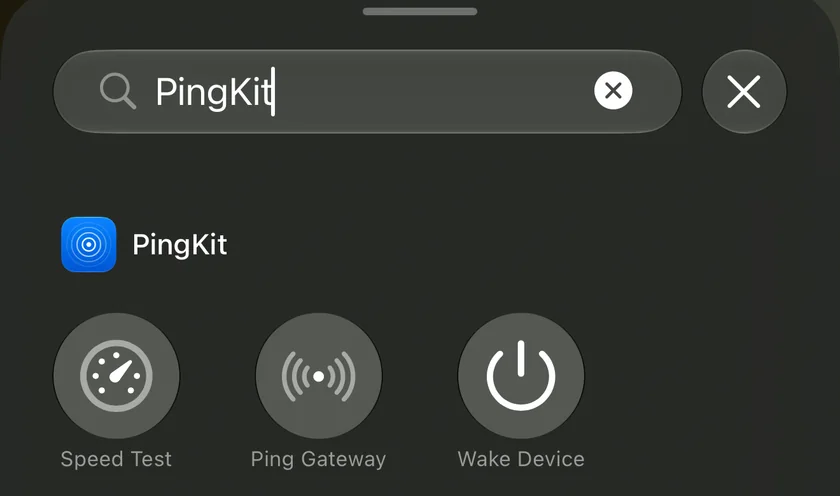
Ping Gateway is the more useful of the first two, because it needs no address. The app resolves your router itself when it opens, so the same control does the right thing on every network you join.
Wake Device is set up per machine: when you add it, you pick one of the devices saved on the Wake-on-LAN screen, and you can add it once for each. A tap opens PingKit and wakes that machine on the network the iPhone is on, or, away from home, through a Mac running PingKit Agent on the same network as the machine. The control is part of Guardian; without it, a tap opens the upgrade screen instead.
The Live Activities
A running speed test or ping appears as a Live Activity on the Lock Screen and in the Dynamic Island, so you can watch a long test without keeping the app in front of you. Watch Mode, which keeps an eye on a connection while you do something else, has its own Live Activity as well, and a Session Watch session on Guardian uses the same one. Session Watch measures only while PingKit is on screen, so if you leave the app its Live Activity says the session is paused rather than pretending to carry on.
The Apple Watch Complication
The Watch app carries one complication, PingKit Status, described in the gallery as network health at a glance. It is a status readout, not a tool: the Watch does not run a scan, a traceroute or a port scan.
How to Add Them
- Touch and hold the Home Screen until the icons wiggle.
- Tap the + button in the corner, or tap Edit and then Add Widget.
- Search for PingKit in the gallery.
- Pick the widget and the size you want, then tap Add Widget and place it.
- Tap Done.
For the Lock Screen accessory, touch and hold the Lock Screen instead, tap Customise, choose the lock screen, and tap one of the slots under the clock. For the Control Center controls, swipe down from the top-right corner, tap +, then Add a Control, and search for PingKit.
The Siri Phrases, Exactly as They Are
PingKit registers ten App Shortcuts, the most iOS allows an app, and they work the moment the app is installed with nothing to set up. These are the phrases, verbatim; a paraphrase will not always match:
- "Ping a host with PingKit"
- "Run a speed test with PingKit"
- "Look up DNS with PingKit"
- "Scan ports with PingKit"
- "Wake a device with PingKit", which wakes a machine saved on the Wake-on-LAN screen
- "Ping a device with PingKit"
- "How's my Wi-Fi with PingKit"
- "Check my network with PingKit", which runs the security checkup
- "Find devices with PingKit", which scans the network you are on
- "Check my connection for gaming with PingKit", which opens Session Watch
Each has a second wording as well, so "Test my internet speed with PingKit", "Wake my computer with PingKit" and "What's on my network with PingKit" all work. There is no traceroute or Bonjour phrase: those two tools have no App Shortcut, so asking Siri for them will not find one.
Eight of them run without opening the app. The Session Watch phrase opens PingKit, because iOS only lets it measure while the app is on screen. The wake phrase sends the packet itself when the iPhone is on Wi-Fi; away from it, Siri hands over to the app, which is where waking through your Mac happens, with Guardian. Each appears in the Shortcuts app as a block you can drop into an automation. Two that are worth building:
- Arriving somewhere: run a speed test when you connect to a particular Wi-Fi network, so you know what the connection looks like before the first video call rather than during it.
- Before a call: a shortcut that pings the two or three hosts you depend on, in sequence, as a single status check.
What None of This Does
Worth being plain about, because a widget implies more than it delivers. None of these surfaces monitors anything in the background. iOS gives an app seconds of background time, not hours, so a widget shows the last value the app recorded and refreshes on the system's schedule rather than on yours. Something that watches a network continuously has to be always on, which on PingKit means the free PingKit Agent on a Mac that stays awake, which sends its alerts to the iPhone, with PingKit Guardian bringing its dashboard to the iPhone app.
Related Articles
- Best Network Tools for iPhone
- How to Test Internet Speed on iPhone
- How to Monitor Home Network from Mac
- Network Info App for iPhone
Get Network Info at a Glance
PingKit's widgets and Siri Shortcuts bring network monitoring right to your home screen and voice assistant.
Download PingKit