The Best Mac Menu Bar Network Monitor: PingKit Agent
Your Mac sits at a desk, plugged into power, almost always online. It is the perfect machine for continuously watching your network - far better than your iPhone, which sleeps, switches between WiFi and cellular, and saves battery aggressively. The right menu bar app turns your Mac into a network sensor that pushes alerts to your iPhone within minutes of something going wrong, for as long as the Mac stays awake: turn off automatic sleep in System Settings, because monitoring pauses while the Mac sleeps.
This guide explains why a Mac menu bar network monitor is the right tool for the job, what it should actually monitor, and how PingKit Agent does it.
Why the Menu Bar Is the Right Place
Network monitoring tools fail not when they cannot detect a problem but when nobody sees the alert. A SaaS dashboard you forget to check is worse than no monitoring - it gives a false sense of security. An emailed alert lands in a folder you scan twice a day. A Slack notification is one of fifty.
The macOS menu bar is the opposite. It is always visible at the top of every screen on every space. A red icon there is impossible to miss. A green icon gives you a constant, ambient confirmation that everything is fine. You glance up, see green, move on with your work. The cognitive overhead is essentially zero.
What a Menu Bar Network Monitor Should Actually Watch
Three categories of metrics cover the vast majority of "is my network okay?" questions:
1. Live Connectivity and Latency
A continuous ping to a stable target (your router, then your ISP gateway, then a public DNS like 1.1.1.1) tells you whether the connection is up and how it is performing. The icon can change colour based on latency thresholds: green under 50ms, yellow 50–200ms, red on packet loss or timeout.
2. Endpoint and Service Uptime
Beyond your local connection, you probably care whether specific services are reachable. Your home server. Your work VPN endpoint. Your hosted website. In PingKit, these checks run server-side, every five minutes with Guardian and hourly for the one free URL - the menu bar app is a convenient place to add a target and see its current status, not the thing doing the polling.
3. Device Presence on the LAN
For households or small offices, knowing which devices are currently on the network has both practical value (is the kid's iPad online?) and security value (is there a device I do not recognise?). A menu bar app that periodically scans the LAN and tracks device arrivals and departures fills this need.
What Most Menu Bar Network Tools Miss
Most existing tools fall into two camps. Either they are simple status indicators (just an up/down icon) that lose information about what is actually wrong. Or they are heavy professional tools (PRTG, SolarWinds) that require infrastructure setup and are massive overkill for a home or small office.
The middle ground - a polished menu bar app that does meaningful monitoring and pushes alerts to your phone - is what PingKit Agent is built for.
How PingKit Agent Works
PingKit Agent lives in your Mac menu bar. The icon shows current network status at a glance. Click it and you get a panel with:
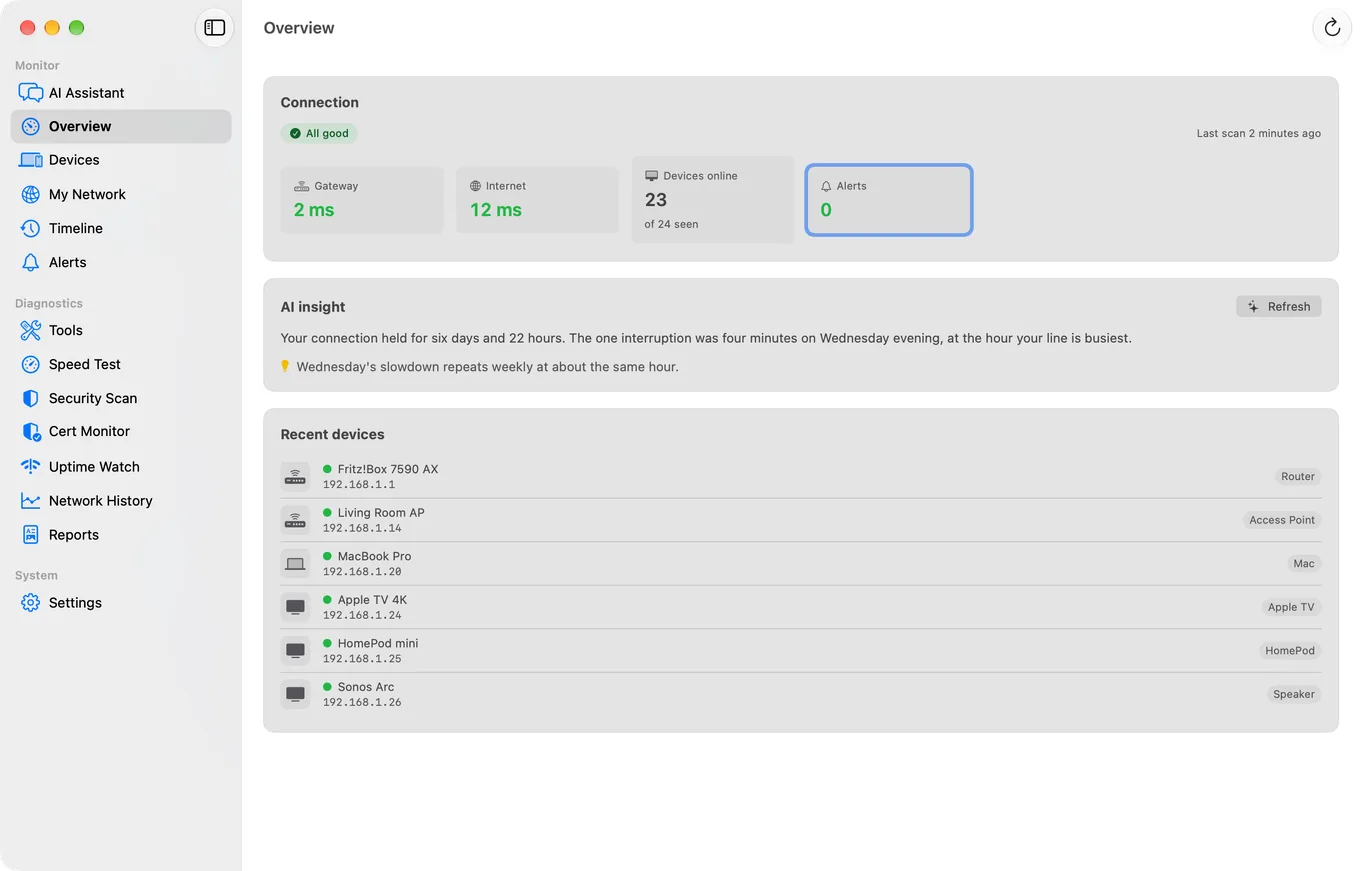
- Live latency to your gateway and to the internet
- Status of every Uptime Watch target you're tracking (checked by PingKit's servers, every five minutes with Guardian)
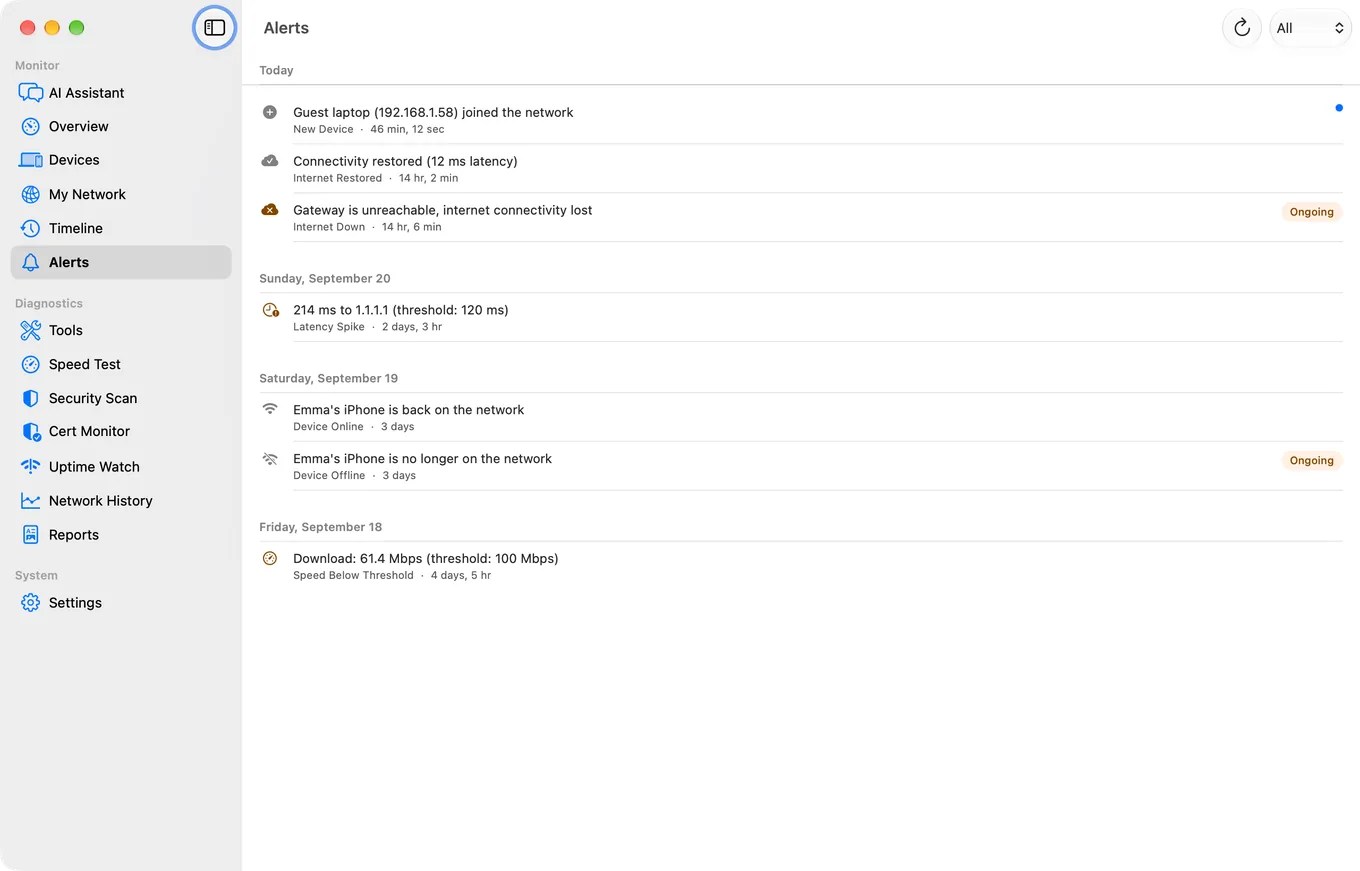
- Recent device activity (joined / left the LAN)
- Quick actions to run a speed test, scan the LAN, or open the full app
When something breaks locally - your internet connection drops, a new device joins the LAN - the Agent detects it directly, updates the menu bar icon to red, and syncs the event to your iPhone via iCloud. Uptime Watch targets work differently: those checks run on PingKit's own servers regardless of whether you added the target from the Mac or the iPhone, and the push notification comes straight from that backend the moment a target changes state, whether or not your Mac is even open.
Why iCloud Sync Matters
For the network your Mac can actually see - live latency, gateway status, LAN device presence - iCloud sync is what connects the Mac to your iPhone. Your Mac talks to your iPhone through your own iCloud account, end-to-end encrypted, with no separate PingKit server in that loop. The update arrives on your phone within seconds of the Mac noticing the change.
Uptime Watch works differently, by necessity: checking whether your website is up while your Mac is asleep requires a server that is always on. Those checks run on PingKit's own backend on a fixed schedule, and the push notification comes directly from that backend to your iPhone, independent of iCloud and independent of whether your Mac is running. Cert Monitor sits in between: the certificate check runs on your Mac (hourly while it is awake) or your iPhone (when you open Cert Monitor), and the backend sends the expiry alerts from those results. Both paths land in the same place: an alert on your phone, without you having to watch a dashboard.
Two watchers, one alert surface. Your Mac watches your local network directly and syncs to your iPhone via iCloud. PingKit's backend watches your Uptime Watch targets around the clock and pushes to your iPhone directly, and Cert Monitor checks your certificates hourly from the Mac Agent while the Mac is awake. Either way, the alert lands where you will see it.
Setting It Up
- Download PingKit Agent from the Mac App Store.
- Sign in to iCloud on the Mac (if you are not already - most Macs are).
- Sign in to the same iCloud account on your iPhone with PingKit installed.
- Optionally, subscribe to Guardian on either device ($2.99/month or $24.99/year). The Mac Agent's continuous monitoring and its alerts are free; Guardian adds the Agent's dashboard to the iPhone app and watches more Uptime Watch URLs. A subscription bought on the iPhone or inside the Mac Agent unlocks the same tier on both through iCloud.
- Add the endpoints you want monitored in Uptime Watch. Your home server, your website, your work VPN gateway - whatever matters.
- Allow notifications on the iPhone when prompted.
- Test the alert path. Add a deliberately bad URL (e.g., one that returns 500) and confirm the failure notification arrives within about five minutes on Guardian, or within the hour on the free tier - that is how often Uptime Watch checks run.
What to Monitor on a Typical Home Network
A useful starting set:
- Default gateway - your router. If this fails, you are off the LAN entirely.
- 1.1.1.1 or 8.8.8.8 - a stable public IP. If this fails but the gateway is fine, your ISP is having a problem.
- Your ISP's DNS server - useful for catching DNS-only failures, where the connection works but name resolution does not.
- Any home server you run - NAS, Plex, Home Assistant, etc.
- Your domain - if you run a website, monitor it. Catches both your hosting and DNS being broken.
What to Monitor for a Small Office
Add to the home set:
- The VPN endpoint if you have a corporate VPN
- Critical SaaS services - the dashboard for whatever your team uses (Linear, GitHub, etc.)
- Internal services - the office printer, the conference room AV system, any shared network device that occasionally needs a reboot
- The office WiFi access points if they expose a management endpoint
Alternatives and When to Use Them
For larger setups, dedicated infrastructure (Prometheus + Grafana + Alertmanager, or a hosted service like Datadog) is better. They scale to hundreds of monitored endpoints, support on-call rotations, and feed dashboards that an SRE team can use.
For a home, a small business, an indie developer, or a remote worker who wants to know about network issues immediately, PingKit Agent is the right tool. It runs on hardware you already own, requires no infrastructure setup, and surfaces problems in the two places where you are guaranteed to see them - the menu bar and your iPhone.
Conclusion
Your Mac is already running. Your iPhone is already with you. The menu bar is already visible. The only thing missing from your network monitoring setup is something that connects all three. PingKit Agent does exactly that, free, and the optional Guardian subscription costs less than a coffee per month.
Related Articles
- Introducing PingKit Agent: Menu Bar Network Monitoring for Mac
- How to Monitor Your Home Network from Your Mac
- How to Monitor Website Uptime from Your iPhone
- PingKit vs Uptime Kuma: Self-Hosted vs iPhone-Native
- PingKit for Small Business
- LanScan Alternatives for Mac
- PingKit Agent for Mac
Turn Your Mac into a Network Sensor
PingKit Agent watches your network from the menu bar whenever your Mac is awake and pushes alerts to your iPhone the moment anything breaks.
Get PingKit Agent for Mac