MacBook WiFi Keeps Disconnecting? Fixes, Fastest First (2026)
Short version. If your MacBook Wi-Fi keeps disconnecting, work through the fixes below in order. The first one decides whether the rest are worth doing: if other devices drop at the same moment, it is not your MacBook, and every macOS setting is wasted effort. If the quick fixes do not hold, run Apple's Wireless Diagnostics and keep a timestamped record of the drops.
The Fastest Fixes, in Order
- Check another device during a drop. If your phone loses the connection at the same instant, the fault is the router or the line, not the Mac. Go straight to fixes 6 and 7.
- Turn Wi-Fi off and on from the Wi-Fi menu in the menu bar. It takes five seconds and clears a stuck connection.
- Forget the network and rejoin it. In System Settings › Wi-Fi, scroll down and click Advanced, click the More Options button next to your network, choose Remove From List and click Forget to confirm, then rejoin with the password (Apple's steps). With iCloud Keychain, this forgets the network on your other Apple devices too. This fixes more repeated reconnection loops than anything else on the Mac side.
- Quit your VPN completely and retest. A VPN that loses its tunnel looks exactly like Wi-Fi dropping.
- Turn off Private Wi-Fi Address for your home network if your router filters or reserves addresses by MAC address.
- Restart the router, then the Mac.
- Move the router off a DFS channel. On 5 GHz, the DFS channels (52 to 144 in the US) can force the router off the air for a minute at a time. Pin it to 36 to 48, or in the US to 149 and above.
- Run Wireless Diagnostics and let it monitor the connection. How to use it is below.
If none of those stop it, you have an intermittent fault, and another guess will not help. What helps is a record of when each drop happened, which is the last section of this guide. The sections in between are the depth behind each fix.
Which Layer Is Actually Failing
"Wi-Fi keeps disconnecting" is used to describe at least four different faults. They need different fixes and are trivially easy to tell apart.
| Symptom | What is actually failing |
|---|---|
| Wi-Fi menu shows disconnected, network name gone | The Wi-Fi link itself |
| Still connected, router page loads, internet does not | The internet connection, not Wi-Fi |
| Sites fail by name, IP addresses work | DNS |
| Only one app misbehaves | That app, or a VPN |
The quickest test, run during a drop, in one line:
ping -c 3 192.168.1.1 && ping -c 3 1.1.1.1 && ping -c 3 apple.comSubstitute your own router address for the first one. Gateway fails means Wi-Fi. Gateway works but 1.1.1.1 fails means the internet connection. Both work but the name fails means DNS. It takes ten seconds and eliminates most of the internet's advice.
Check another device first. If your phone drops at the same instant, the MacBook is fine and the problem is the access point or the line. Every macOS-side fix below is then a waste of an evening.
Causes That Are Genuinely Mac-Side
Waking from sleep
If drops happen specifically on opening the lid, this is the reconnection sequence, not a Wi-Fi fault. macOS has to reassociate, re-run DHCP and re-resolve DNS, which takes a few seconds. It becomes a real problem only when it fails outright, which usually points at the saved network configuration below.
A corrupted saved network
The most reliable Mac-side fix, and the one worth trying before anything drastic. In System Settings › Wi-Fi › Advanced, click the More Options button next to the network, choose Remove From List and confirm with Forget, then rejoin it with the password. On older macOS, use System Preferences › Network. This clears the stored association state that survives restarts and causes repeated reconnection loops.
Competing preferred networks
In the same Known Networks list, order matters and old entries linger. A neighbour's open network, or an ancient office network, sitting above your own will pull the Mac away. Delete anything you do not recognise.
VPN software
A VPN that loses its tunnel often presents as "the internet stopped" while Wi-Fi is perfectly healthy. Some clients also install a kill switch that blocks traffic on reconnect. Quit the VPN entirely and retest before blaming the network.
Private Wi-Fi Address
macOS can present a rotating MAC address per network. Some routers with MAC filtering or static DHCP reservations react badly, handing out a new lease each time or refusing one. If your router is configured around MAC addresses, turn this off for your home network specifically in that network's settings.
Causes That Are Not Mac-Side, But Look Like It
DFS radar events
If your 5 GHz channel is a DFS channel (52 to 144 in the US), the access point must abandon it within a second of believing it has detected radar, then listen on its replacement channel for 60 seconds before transmitting. Everything disconnects for at least a minute and comes back. There is nothing in your Mac's logs to find, because from the Mac's point of view the network simply vanished. Check with system_profiler SPAirPortDataType, and if you are on a DFS channel, pin the router to 36 to 48, or in the US to 149 and above. Which channels are DFS varies by country, so check your router's region list.
Band steering and roaming
With one network name across both bands, the router decides where to put you and can move you mid-session. In a mesh network the same applies to moving between nodes. A poorly tuned handoff is a brief, total drop.
A rising noise floor
Interference does not weaken your signal, it raises the noise underneath it. Option-click the Wi-Fi icon and read RSSI and Noise together. A strong signal with a noise floor above -80 dBm is a bad connection wearing a good signal's clothes. Microwaves, USB 3 hubs and neighbouring networks are the usual sources.
How to Use Wireless Diagnostics on a Mac
Network Utility is gone from macOS, but Apple's Wi-Fi tool survived. Wireless Diagnostics is on every Mac, in /System/Library/CoreServices/Applications, and it is the right next step once the quick fixes have not held. Menu and window names below were checked on macOS 27; older versions may differ slightly.
Open it
- Quit your open apps and connect to the network that is giving you trouble, as Apple's instructions ask.
- Hold the Option key, click the Wi-Fi icon in the menu bar, and choose Open Wireless Diagnostics (Apple: Use Wireless Diagnostics on your Mac).
- Follow the assistant. If the Wi-Fi icon is not in your menu bar, open the app from that CoreServices folder instead, using Finder's Go to Folder.
For drops, choose to monitor
A one-off test usually passes, because the connection is fine at the moment you run it. For a connection that keeps dropping, take the option to Monitor my Wi-Fi connection. Monitoring continues while the Monitor window stays open and you stay on the same network. In the macOS 27 app's own words, you will be notified when a failure has been detected, and it then shows a brief description of the issue before moving on to its summary (Apple).
Read the summary
The summary lists the problems it found, each with an info button that explains it, plus Apple's Wi-Fi best practices. These are the findings most relevant to drops, named as the macOS 27 app shows them:
| Finding | What it means | What to do |
|---|---|---|
| Poor Signal Strength | The signal between the Mac and the router is weak | Move closer, or add an access point or mesh node |
| Poor Wireless Environment | Significant interference | See the noise floor section above |
| Crowded Wi-Fi Channel | Several nearby networks share your channel | Set the router's channel to automatic, or pick a quieter one |
| Preferred Network Mismatch | Your saved copy of the network has conflicting information | Forget the network and rejoin (fix 3) |
| Double NAT Detected | Two routers in a row are both translating addresses | Put one of them in bridge mode |
| DNS Resolution Failure | The connection works but names do not resolve | A DNS fault, not a Wi-Fi one |
Where the report goes
When it finishes, Wireless Diagnostics saves a compressed report in /var/tmp (the same folder as /private/var/tmp), with a name that starts with WirelessDiagnostics and ends in .tar.gz. Apple says it holds details useful to a network administrator, service provider or IT support person (Apple: Use Wireless Diagnostics on your Mac). The summary screen is the part written for you. Keep the file if you are going to contact support.
The Window menu, for more detail
- Scan lists every nearby network with its BSSID, security, signal (RSSI), noise, channel, band and channel width. It is the quickest way to see whether your channel is crowded.
- Performance draws signal and noise as live graphs. Leave it open while you move around the house, or while the drops happen.
- Info shows the details of the current connection.
- Logs turns on background logging for Wi-Fi and related system components. On macOS 27 the window warns that you may need to restart for the change to take effect, and logging then carries on across restarts, so turn it off when you are done.
- Sniffer captures raw Wi-Fi traffic. It is for engineers, and you will not need it to fix a home connection.
Wireless Diagnostics is good at the radio question: is the signal, the noise or the channel bad. Intermittent drops need a second question answered as well, which is when.
The Part That Makes This Solvable
Both the drop and the recovery land on the timeline with a time against them, so the Agent's running record is what settles whether the failures cluster at one hour of the evening or scatter across the day.
Every fix above is a hypothesis, and intermittent faults defeat hypothesis testing. You change something, it seems better, it fails again on Thursday, and you no longer know which change mattered.
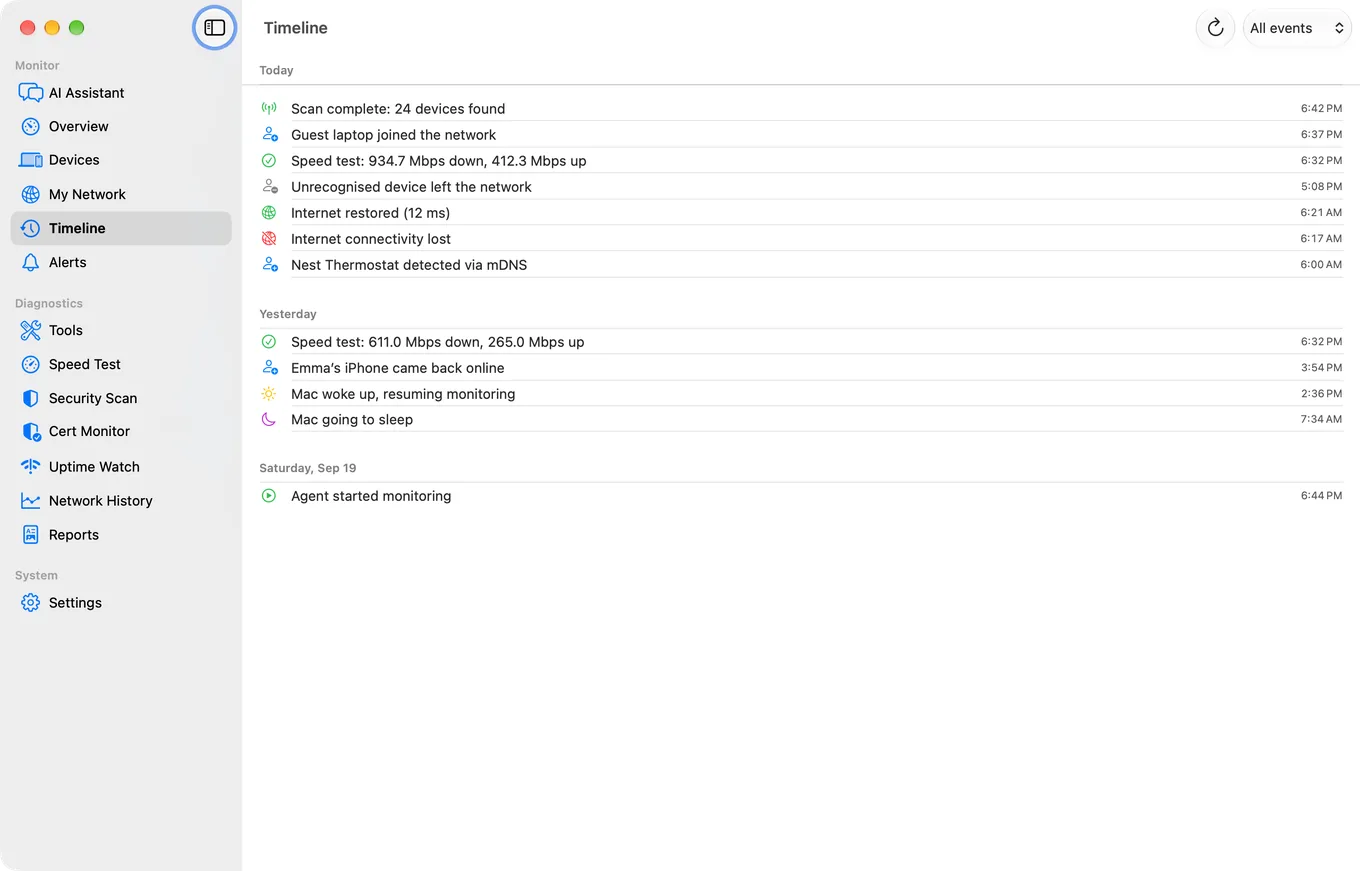
What actually resolves this is a record. PingKit Agent runs in the menu bar and, on mains power, checks your router and two internet addresses (1.1.1.1 and 8.8.8.8) every 30 seconds; on battery it backs off to once a minute by default. Here is exactly what it writes down:
- The drop, at the first failed check. The timeline gets "Internet connectivity lost" with the time, and "Internet restored" with the time and the latency when the connection comes back. The gap between the two is roughly how long the drop lasted, to within one check interval. A drop shorter than that can fall between two checks and not be recorded.
- Sleep and wake. The timeline also marks each time the Mac goes to sleep and wakes up, so you can see whether drops cluster just after opening the lid or arrive in the middle of a working afternoon. Those are different faults.
- Alerts, with a little patience. The Internet Down notification fires after three failed checks in a row and Internet Restored after two good ones, so a single lost packet does not interrupt you. A latency alert fires above a threshold you set, 100 ms unless you change it.
- Kept for 30 days. The history is stored on the Mac for 30 days and survives a restart or a quit, but the Timeline shows the newest 500 events, which is under two days on a busy network because every scan adds one.
All of that runs on the Mac without a subscription. Alongside it, My Network shows the current signal, noise, signal-to-noise, band and channel, so when a drop is happening you can read the radio at the same moment. A record kept over several days answers the questions guessing cannot: does it fail at the same time daily, does it follow sleep, and does it happen while you are away from the desk with the Mac left awake.
Read the record with the layer test in mind. What the timeline captures is a loss of internet reachability. That is what a Wi-Fi drop looks like from the Mac, but an outage on the line looks the same, so if your phone dropped at the same moments, the router or the ISP is the place to look.
If the drops turn out to be the line rather than the Wi-Fi, that same history is what an ISP will accept as evidence. We covered how to present it so support cannot wave it away separately.
Honest Limits
- Monitoring pauses when the Mac sleeps, so a closed-lid MacBook cannot record overnight drops. A Mac kept awake can.
- Confirming a DFS event needs the router's log. The Mac only sees the disconnection.
- It records internet reachability, not the Wi-Fi association itself. Use the layer test, or Wireless Diagnostics, to tell a Wi-Fi drop from a line outage.
- No packet capture. For frame-level analysis use Wireshark or Wireless Diagnostics' Sniffer.
- macOS 15 or later.
Frequently Asked Questions
Why does my MacBook keep disconnecting from WiFi?
The common causes are a corrupted saved network entry, a competing preferred network, VPN software, a DFS channel forcing the access point to move, and interference raising the noise floor. Test another device first: if it drops at the same time, the problem is the network rather than the Mac.
How do I fix WiFi that keeps dropping on macOS?
Start by forgetting the network: in System Settings, click Wi-Fi, then Advanced, click the More Options button next to the network, choose Remove From List and click Forget, then rejoin it with the password. That clears stored association state and resolves a large share of repeated reconnection loops. If other devices drop simultaneously, work on the router instead.
How do I run Wireless Diagnostics on a Mac?
Quit your open apps and connect to the problem network. Hold the Option key, click the Wi-Fi icon in the menu bar and choose Open Wireless Diagnostics, then follow the assistant. For a connection that drops intermittently, choose Monitor my Wi-Fi connection and leave the Monitor window open on the same network so it can catch a drop when it happens.
Where does Wireless Diagnostics save its report?
In /var/tmp (also shown as /private/var/tmp), as a compressed file whose name starts with WirelessDiagnostics and ends in .tar.gz. Apple says it holds details useful to a network administrator, service provider or IT support person; the summary screen is the readable version.
Why does my Mac lose WiFi after waking from sleep?
On wake macOS has to reassociate, renew its DHCP lease and re-resolve DNS, which takes a few seconds normally. If it fails rather than being slow, remove and rejoin the network to clear the saved configuration.
Does Private WiFi Address cause disconnections?
It can, on routers configured around MAC addresses for filtering or static DHCP reservations, because the rotating address is not recognised. Turn it off for your home network specifically in that network's settings.
How can I prove my WiFi is dropping?
You need a timestamped record rather than a memory of it. Continuous connectivity monitoring that logs drops and latency spikes with times produces evidence you can act on, and that an ISP will accept if the fault turns out to be the line.
Stop guessing which change fixed it
Connectivity checks every 30 seconds on mains power, each drop it catches on a timeline with its time, while the Mac is awake, and live signal and channel readings. Free, macOS 15 or later.
Get PingKit Agent for Mac