Why Does My Internet or Broadband Keep Disconnecting?
Few things are more frustrating than an internet (or broadband, if that's what you call it) connection that works for a few minutes, drops out, reconnects, and drops again. Whether it's WiFi, a cable modem, or a DSL line, the cause isn't always obvious - it could be your router, your ISP, WiFi interference, or something else entirely. Here's a systematic approach to finding and fixing intermittent disconnections. If your connection shows as joined but nothing loads at all, rather than dropping intermittently, see our guide to "connected to WiFi but no internet" instead.
Common Causes of Intermittent Disconnections
Internet dropping in and out can have many causes. Understanding the most common ones helps you narrow down the culprit faster.
Router and Modem Issues
Your router is a small computer that runs continuously. Over time, memory leaks, overheated components, or firmware bugs can cause instability. If your router is more than 4-5 years old, age-related hardware degradation is a real possibility.
- Overheating - routers stuffed in cabinets or stacked on other electronics overheat and start dropping connections
- Firmware bugs - outdated firmware can cause random disconnections. Check your router manufacturer's site for updates
- Memory exhaustion - cheap routers with limited RAM struggle when too many devices are connected
ISP Problems
Sometimes the problem is upstream. Your ISP's network equipment, a damaged cable in your street, or congestion at peak hours can all cause intermittent outages that look like a local problem. On a DSL line specifically, electrical noise picked up along the copper phone line is a common cause of a connection that drops repeatedly, especially if it happens more during bad weather or at a consistent time of day.
WiFi Interference
WiFi operates on shared radio frequencies. Your neighbours' routers, Bluetooth devices, baby monitors, microwaves, and even USB 3.0 devices can all interfere with your WiFi signal. The 2.4 GHz band is particularly crowded in apartments and dense neighbourhoods.
DNS Failures
If your DNS server is unresponsive, your internet connection is technically still active but nothing loads - because your device can't translate domain names into IP addresses. This feels exactly like a disconnection even though the underlying connection is fine.
Network Overload
Too many devices downloading, streaming, or backing up simultaneously can overwhelm a router or exhaust your bandwidth. Security cameras uploading footage, cloud backups running, and someone streaming 4K can easily saturate a connection.
How to Diagnose the Problem with PingKit
For a drop that only appears every twenty minutes, Guardian's Watch Mode for intermittent drops re-runs the whole diagnostic on a loop for up to an hour while the app is open, then names the segment that failed rather than just the step.
Rather than guessing, use diagnostic tools to identify exactly where the problem is. PingKit gives you several tools specifically designed for this, and the fastest starting point is the one-tap Smart Diagnostics run, which works through the same sequence automatically and names which side of the router the fault is on. For a drop that only happens sometimes, Connection Monitor is the one to leave running, because a test that passes tells you nothing about a fault that was not happening at the time.
Connection Monitor: Track Stability Over Time
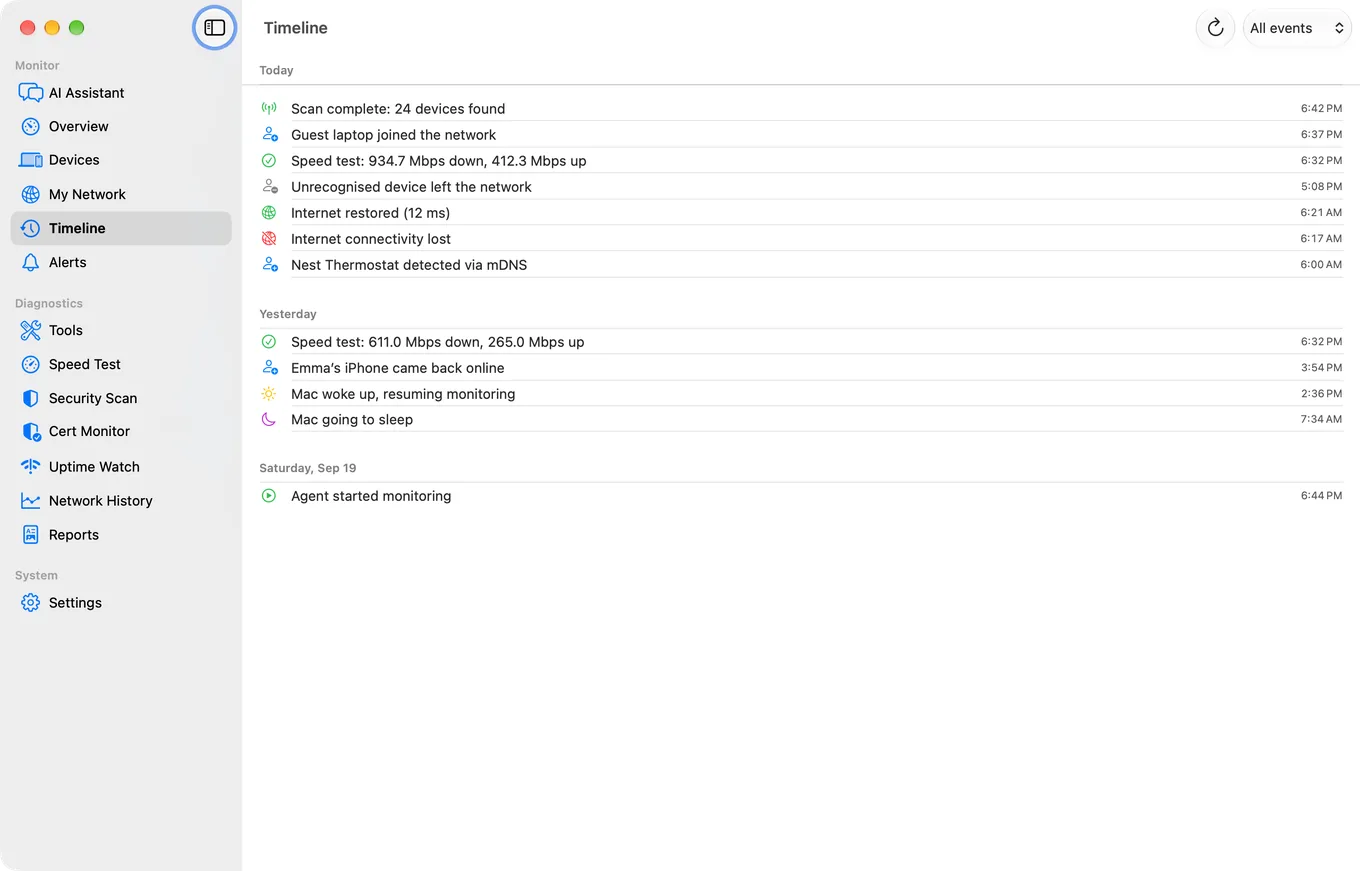
PingKit's Connection Monitor pings a reliable server in real time and graphs the results live while the app is open. Keep it in the foreground and watch the live graph and stability score - you'll see exactly when a disconnection happens and how long it lasts. For unattended tracking over hours or days, run the free Mac Agent instead, which can watch your connection continuously from a Mac that stays awake.
- Regular pattern (drops every 30 minutes) - suggests a router DHCP lease issue or a device reconnection cycle
- Drops during specific times (evenings, weekends) - points to ISP congestion or neighbourhood WiFi interference
- Random, unpredictable drops - could be hardware failure, overheating, or intermittent cable damage
Pro tip: Run Connection Monitor while connected to your router via different methods. If drops happen on WiFi but not when you're near the router, the issue is signal strength. If they happen everywhere, the problem is the router or ISP.
Ping: Check for Packet Loss
Open PingKit's Ping tool and ping your router's gateway address (shown in My Network). If you see packet loss to your own router, the issue is between your phone and the router - typically WiFi interference or a router hardware problem.
Then ping an external server like 1.1.1.1 (Cloudflare). If you get packet loss to external servers but not to your router, the problem is between your router and the internet - likely an ISP issue.
MTR: Find Where the Problem Is
MTR combines traceroute with continuous ping to show packet loss and latency at every hop between you and a destination. Run an MTR to a reliable server like 1.1.1.1 and look for where packet loss begins:
- Loss at hop 1 (your router) - local WiFi or router issue
- Loss at hops 2-3 (ISP equipment) - problem on your ISP's network
- Loss only at the final hop - the destination server may be rate-limiting ICMP; not necessarily a real problem
Speed Test: Measure Bandwidth
Run speed tests at different times of day. If speeds are normal in the morning but terrible in the evening, ISP congestion is likely. If speeds are consistently low, there may be a physical line issue or a plan limitation you've forgotten about.
A drop you can describe is a drop somebody can fix. The tool that records one while you watch, with the timeouts drawn on the graph rather than missing from it, is Internet Connection Monitor for iPhone and Mac
Fixing the Problem
Quick Fixes to Try First
- Restart your router and modem - unplug both for 30 seconds, plug the modem in first, wait for it to fully connect, then plug in the router
- Check for overheating - if your router is hot to the touch, move it to a well-ventilated spot
- Update firmware - log into your router's admin panel and check for available updates
- Switch WiFi channels - if you're on a congested channel, switching can dramatically improve stability
- Change DNS servers - switch to Cloudflare (1.1.1.1) or Google (8.8.8.8) to rule out DNS-related drops
If the Router Is the Problem
- Factory reset the router and reconfigure it from scratch
- Reduce the number of connected devices if your router is overwhelmed
- If the router is old, consider replacing it - modern WiFi 6 or WiFi 7 routers handle more devices and offer better stability
If the ISP Is the Problem
When your diagnostics point to the ISP, gather your evidence before calling support:
- Screenshots of Connection Monitor's live graph and stability score showing the pattern of disconnections
- MTR results showing packet loss on their network hops
- Speed test results showing speeds well below your plan
This data transforms a "my internet keeps dropping" call into a factual, evidence-backed report. ISP support teams take these reports more seriously because you've already done the troubleshooting they would ask you to do.
Already shipped: PingKit Guardian includes Uptime Watch, which checks a target you choose (your router's remote-access page, a self-hosted service, anything with a public URL or an open TCP port) every five minutes from Cloudflare and pushes a notification to your iPhone the moment it goes down or comes back, whether or not your Mac is awake. That state-change history is useful evidence when dealing with an unreliable ISP.
When to Call a Technician
If you've tried everything above and the problem persists, there may be a physical issue that needs professional attention:
- Damaged cables - the coaxial or fibre cable running to your house could be damaged, corroded, or poorly terminated
- Faulty splitters - if your cable is split to multiple rooms, a bad splitter degrades signal quality
- Line noise - for DSL connections, electrical interference on the phone line causes intermittent drops
- Exchange congestion - in some areas, the local exchange is simply oversubscribed and needs ISP investment
Ask your ISP to send a technician to test the line at your premises. Have your PingKit diagnostic data ready to show them where the problem is occurring.
Related Articles
- How to Keep a History of Your Internet Speed on iPhone
- Catch an Intermittent Internet Drop on iPhone
- How to Fix Slow WiFi on iPhone
- How to Tell If ISP Is Throttling
- What Is Packet Loss
- PingKit for Remote Work: Fix Calls & Prove Outages
- Is It Your WiFi, Your Router, or Your ISP?
- Why Does WiFi Disconnect When You Lock Your iPhone?
- WiFi Camera or Doorbell Keeps Going Offline: How to Diagnose It
- Starlink Keeps Dropping: How to Log the Outages as Evidence
- Video Calls Keep Dropping: Find the Cause on Your Home Internet
Stop Guessing, Start Diagnosing
Connection Monitor, Ping, MTR, Speed Test, and 15 more free tools to find out exactly why your internet keeps dropping.
Download PingKit