Angry IP Scanner for Mac (2026): It Works, But Read This First
Short version. Yes, Angry IP Scanner works on a Mac. Version 3.10.0 has separate downloads for Apple Silicon and Intel, each with Java bundled, so there is nothing else to install. It is not notarized, so on macOS 15 or later you approve it once under System Settings, Privacy and Security, Open Anyway. It is a good scanner: you press go, it lists what is there, it stops. If what you actually want is to be told when something changes while you are not looking, that is a different tool, and a monitor rather than a scanner.
As an IP scanner for Mac, Angry IP Scanner is free, open source, fast, and genuinely fine. If you came here from Windows looking for Advanced IP Scanner instead, that one has no Mac version at all, and Angry IP Scanner is the closest thing to it. This page is not an argument against it. It is about the distinction between scanning and monitoring, which is the thing people usually discover a month later.
Full disclosure: I build PingKit Agent, so weigh the recommendation accordingly. The limits section is not padding, and there is a whole category of Mac network tool below that PingKit deliberately is not.
Getting It Running on macOS
- Java is already included. The macOS bundles ship with their own Java runtime, so no separate Java installation is needed. Apple Silicon and Intel builds are separate downloads (
macArm64andmacX86), so take the one matching your Mac. Since 3.10.0 the Mac build no longer needs Rosetta. - Gatekeeper will block it on first launch. The app is not signed or notarized. On macOS 15 or later the old right-click and Open trick no longer works for such apps: double-click it once, dismiss the warning, then open System Settings, Privacy and Security, scroll down and click Open Anyway, then click Open when the warning reappears. On macOS 14 or earlier, Control-click the app and choose Open.
- Grant Local Network permission when prompted, or it will find nothing and give no useful reason why.
That last point catches people on modern macOS. An app denied local network access reports an empty network rather than an error.
Scanning and Monitoring Are Different Jobs
| Scanner | Monitor | |
|---|---|---|
| When it runs | When you press go | Continuously |
| Answers | What is here now? | What changed while I was away? |
| New device appears at 3am | You will never know | Alert |
| Internet drops for 20 minutes | Invisible | Logged, with a timestamp |
| Setup | None | Install and leave running |
Most people searching for a network scanner want the left column, and about a third of them actually want the right one and have not framed it that way yet. If you have ever thought "I wonder if anything is on my WiFi that should not be", a scan only answers that for the second you ran it.
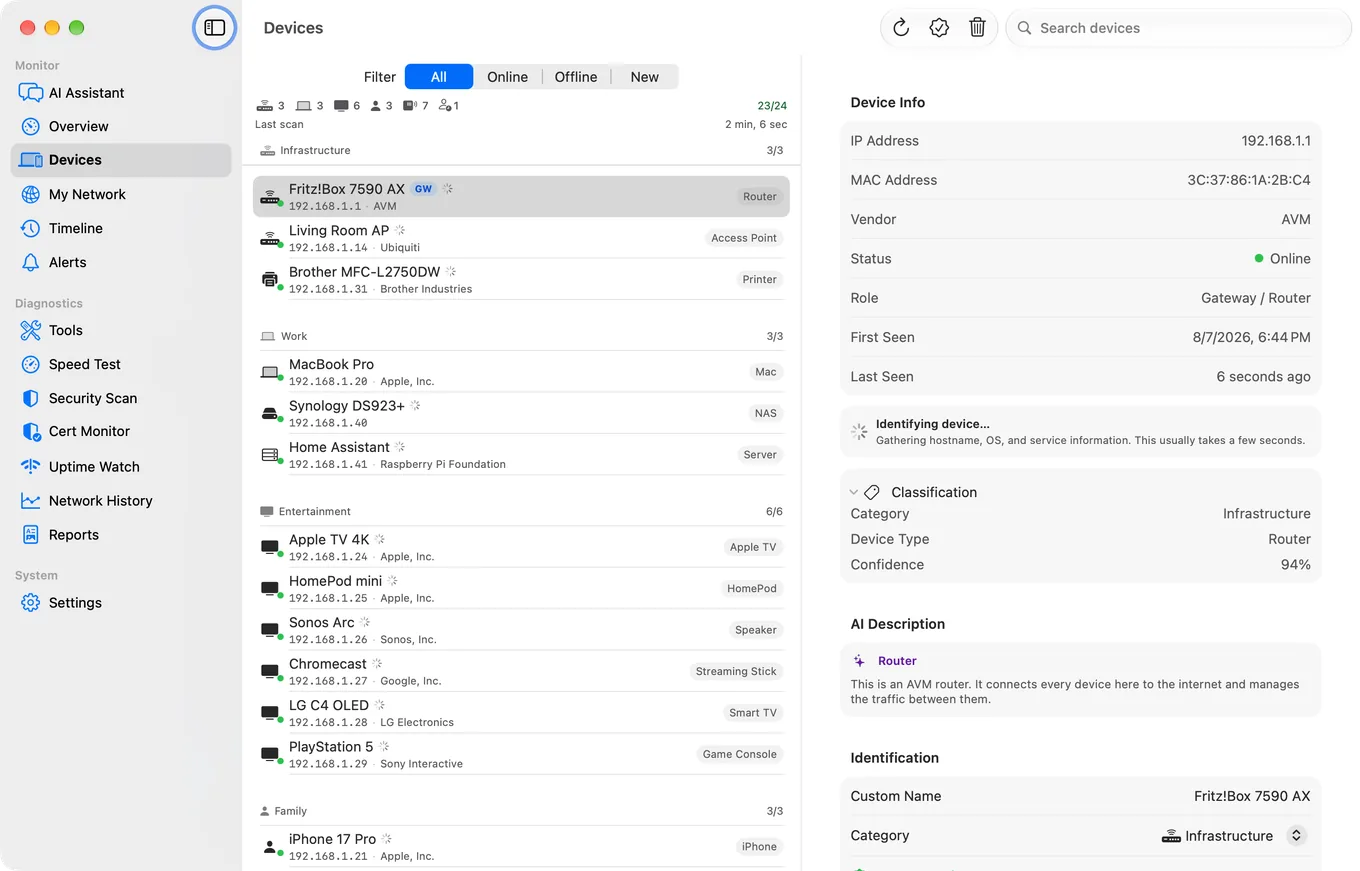
What an IP Scanner for Mac Sees That an iPhone Cannot
A Mac has one real advantage over a phone here: hardware addresses. iOS hands apps a placeholder instead of each device's MAC address, so no iPhone scanner can read one from the network. On a Mac, arp -a in Terminal lists them, and the first half of a MAC address identifies the manufacturer, which is often the quickest way to tell whose box an unnamed address is. Phones and laptops using a private Wi-Fi address are the exception, because that address is made up.
PingKit Agent uses that on macOS 15 and 26: its scan reads each device's MAC address from your Mac and, where the address is not a private one, looks up the vendor, and a device's detail view shows both alongside its hostname, when it was first seen and when it was last seen. macOS 27 stopped giving apps that table (Apple's own arp -a still reads it), so on macOS 27 a device the Agent first meets has no MAC row (one it already knew keeps the address it learned), and the Agent identifies devices from what they announce on the network instead: Bonjour, UPnP and hostnames.
The part a scanner cannot do at all is the ongoing part. The Agent rescans every 1, 5, 10, 15 or 30 minutes on mains power (every 15 on battery by default), remembers the devices it has seen, and raises a new device alert when something it has never seen joins. It spends its first 24 hours learning what is normal, so your existing devices do not each trigger one. All of that is free on the Mac.
Where Each One Wins
Angry IP Scanner: free, scriptable via its command line interface, exports to CSV and XML, and scans arbitrary ranges as wide as you like. If you are auditing a subnet at a client site, it is the right tool. For deeper work on one host, nmap on a Mac goes further, and the Mac port scanner options are compared separately.
PingKit Agent: lives in the menu bar and keeps sweeping on an interval you set. It raises nine kinds of alert, including a new device joining, a device going offline, the internet dropping and coming back, a latency spike, and a device changing the services it advertises. The offline alert is off by default and switched on in the Agent's Settings. It also runs speed tests on a schedule and watches TLS certificate expiry.
What PingKit Agent is not. It does not measure bandwidth, throughput per app, or which process is using your connection. If that is what you came for, iStat Menus is the standard answer for your own Mac's usage and Little Snitch is the answer for controlling what your Mac connects to. PingKit Agent watches the network and the devices on it, which is a different job.
Honest Limits
- PingKit Agent scans your local segment, not arbitrary wide ranges. Angry IP Scanner is better for that.
- No command line interface and no scripting.
- Monitoring pauses when your Mac sleeps.
- Device naming is good, not infallible. Vendor and protocol signatures do the work, with a Guardian-only AI fallback when signature matching is genuinely uncertain.
- macOS 15 or later, where Angry IP Scanner supports much older versions.
Frequently Asked Questions
Does Angry IP Scanner work on macOS?
Yes. Version 3.10.0 has separate Apple Silicon and Intel downloads, each bundling its own Java runtime. The app is not signed or notarized, so Gatekeeper blocks the first launch: on macOS 15 or later, try to open it once, then click Open Anyway in System Settings, Privacy and Security. Grant Local Network permission when prompted or it will find nothing.
Why does Angry IP Scanner find no devices on my Mac?
Almost always the Local Network permission. macOS requires apps to be granted local network access, and a denied app reports an empty network rather than an error. Check System Settings, Privacy and Security, Local Network.
What is the difference between a network scanner and a network monitor?
A scanner answers what is present at the moment you run it. A monitor runs continuously and tells you when something changes, such as a new device joining or the internet dropping while you were asleep. They solve different problems.
Is there a free network scanner for Mac?
Angry IP Scanner is free and open source under GPL v2. PingKit Agent is free too, including its device discovery every few minutes, new device and offline alerts, and scheduled speed tests. To browse the Agent's devices, alert history and scheduled speed tests in the iPhone app, you need PingKit Guardian, bought on the iPhone or in the Mac Agent, $2.99 per month or $24.99 per year.
Can Angry IP Scanner run scheduled scans?
Not on its own. It has a command line interface that can be driven by cron or launchd, which is the usual way people automate it. There is no built-in scheduler or alerting.
Why does macOS refuse to open Angry IP Scanner?
Because the download is not signed or notarized by Apple, which its developer says requires a paid Apple developer account and extra build steps. Since macOS 15, Control-click and Open no longer overrides Gatekeeper for such apps. Try to open it once, then go to System Settings, Privacy and Security, and click Open Anyway, then Open when the warning reappears. macOS remembers the choice.
Can a Mac IP scanner show MAC addresses?
Yes, which is one thing a Mac can do that an iPhone cannot: iOS gives apps a placeholder instead of each device's hardware address. On a Mac, arp -a in Terminal lists them. On macOS 15 and 26, PingKit Agent shows the MAC address of the devices it finds and, where the address is not a private one, the manufacturer looked up from it. macOS 27 stopped giving apps that table, so there a device the Agent first meets has no MAC row (one it already knew keeps the address it learned), and the Agent identifies devices from what they announce on the network instead: Bonjour, UPnP and hostnames.
When a scan is not enough
Sweeps at an interval you set while your Mac is awake, with alerts for new devices, dropouts and latency spikes. Free, macOS 15 or later.
Get PingKit Agent for Mac