Mac Network Monitor: The Best Apps for Traffic and Uptime (2026)
Read this first. "Mac network monitor" means two different jobs, and most lists blur them together. One is watching your Mac's own traffic: which apps are using the network, and how much. macOS already does that for free. The other is watching the network itself: is the internet up, is the router slow, what just joined. That is where a monitoring app earns its place. Pick based on which question you are actually asking.
Search for a network monitor for Mac and the results mix tools that do genuinely unrelated jobs. The first section covers the per-app traffic question with what is already on your Mac. The rest compares the apps, including ours, for both jobs.
Which Apps Are Using My Mac's Network? Start With What Is Built In
If something is eating your bandwidth and you want to know what, you do not need to install anything.
Activity Monitor's Network tab
Open Activity Monitor (in Applications › Utilities) and click Network. On macOS 27 the app lists each process with columns headed Sent Bytes, Rcvd Bytes, Sent Packets and Rcvd Packets; click a column heading to sort, and the heaviest app rises to the top. Apple documents the bottom of the window: Packets in and Packets out, Packets in/sec and Packets out/sec, Data received and Data sent, and Data received/sec and Data sent/sec, with a pop-up menu above the graph that switches it between Packets and Data. View › Dock Icon › Show Network Usage turns the Dock icon into a live graph (Apple: View network activity in Activity Monitor).
nettop in Terminal
nettop -Pnettop is the built-in live view of network use by process, and -P collapses it to one line per process. A few flags from its manual page are worth knowing: -m tcp or -m udp limits it to one protocol, -t wifi or -t wired to one kind of interface, -d shows the change since the last update instead of running totals, and -p followed by a process name or PID follows a single app. -L 0 prints comma-separated samples until you stop it, which you can redirect to a file to keep a log. Press q to quit.
Always in the menu bar
If you want that picture without opening anything, iStat Menus' network menu includes a bandwidth breakdown for the top apps, and the free tier of Little Snitch Mini shows a real-time connection list and traffic diagrams. Both are covered below.
One thing to be clear about: PingKit Agent does not measure per-app traffic. It watches the network rather than the Mac, which is the second job.
The Jobs, and Which App Does Each
| You want to know... | App for that | Price |
|---|---|---|
| Which app is using my bandwidth right now? | Activity Monitor, nettop | Built in |
| The same, always visible in the menu bar | iStat Menus | $11.99 (or Setapp) |
| What is this Mac connecting to on the internet? | Little Snitch, Little Snitch Mini | €59; Mini free to watch |
| Is the internet at home or the office up? What's connected? | PingKit Agent, Fing Desktop | Free; Fing from $7.99/mo |
PingKit Agent
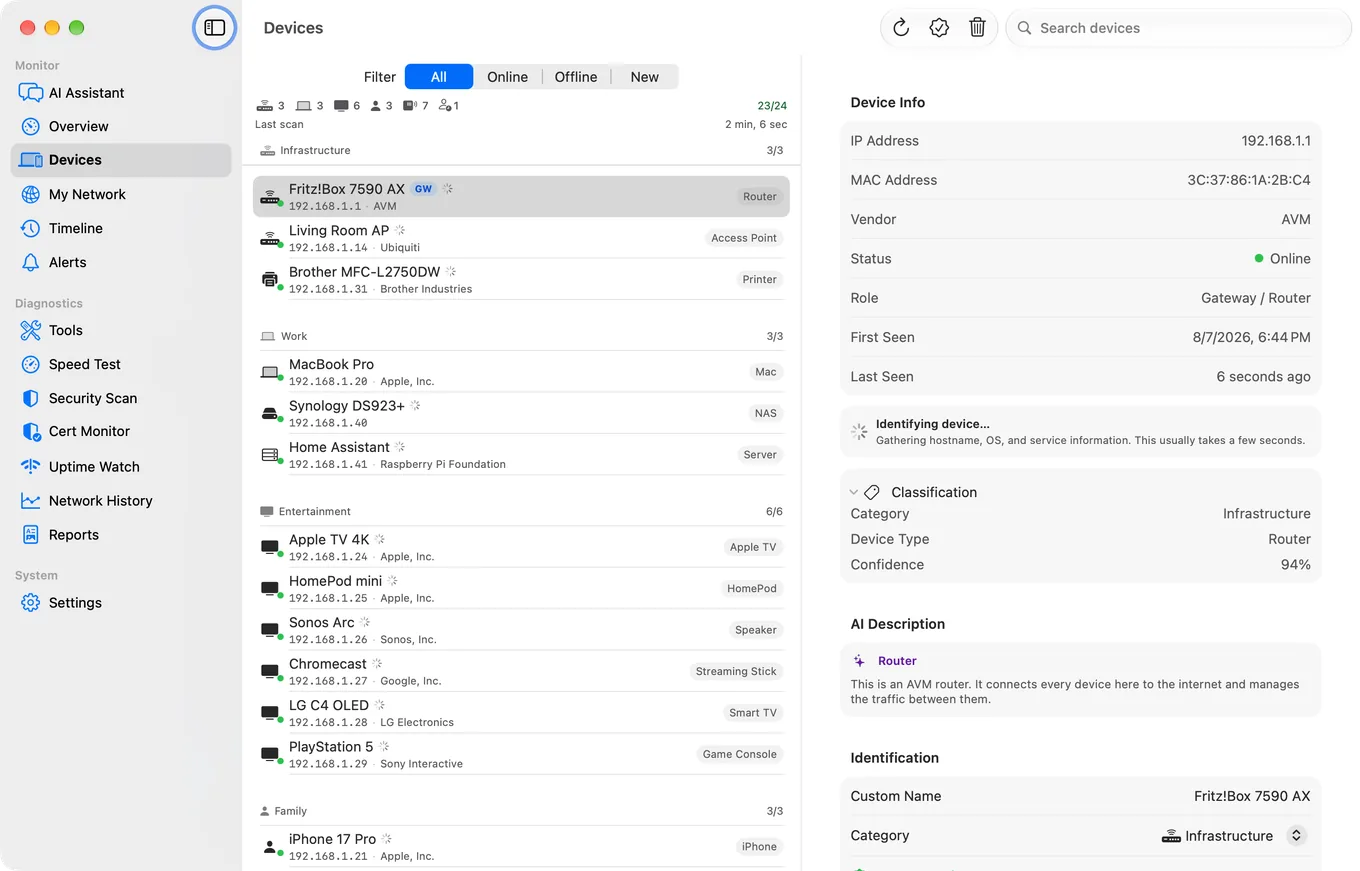
Our app. PingKit Agent is a free Mac menu bar app for the network-health job, and the monitoring is part of the free app. It discovers the devices on your network and keeps watching: on mains power it rescans every five minutes and checks your router and the internet every 30 seconds. It keeps a timeline of what joined, what left and when the internet dropped, and alerts on the Mac when a new device joins (after a first day of learning your network), the internet drops or recovers, or latency crosses a threshold you set, and, if you turn them on, when a known device goes offline or comes back, or a speed test falls below a threshold. Gateway and internet latency are measured separately, so a slow connection can be told from a slow router.
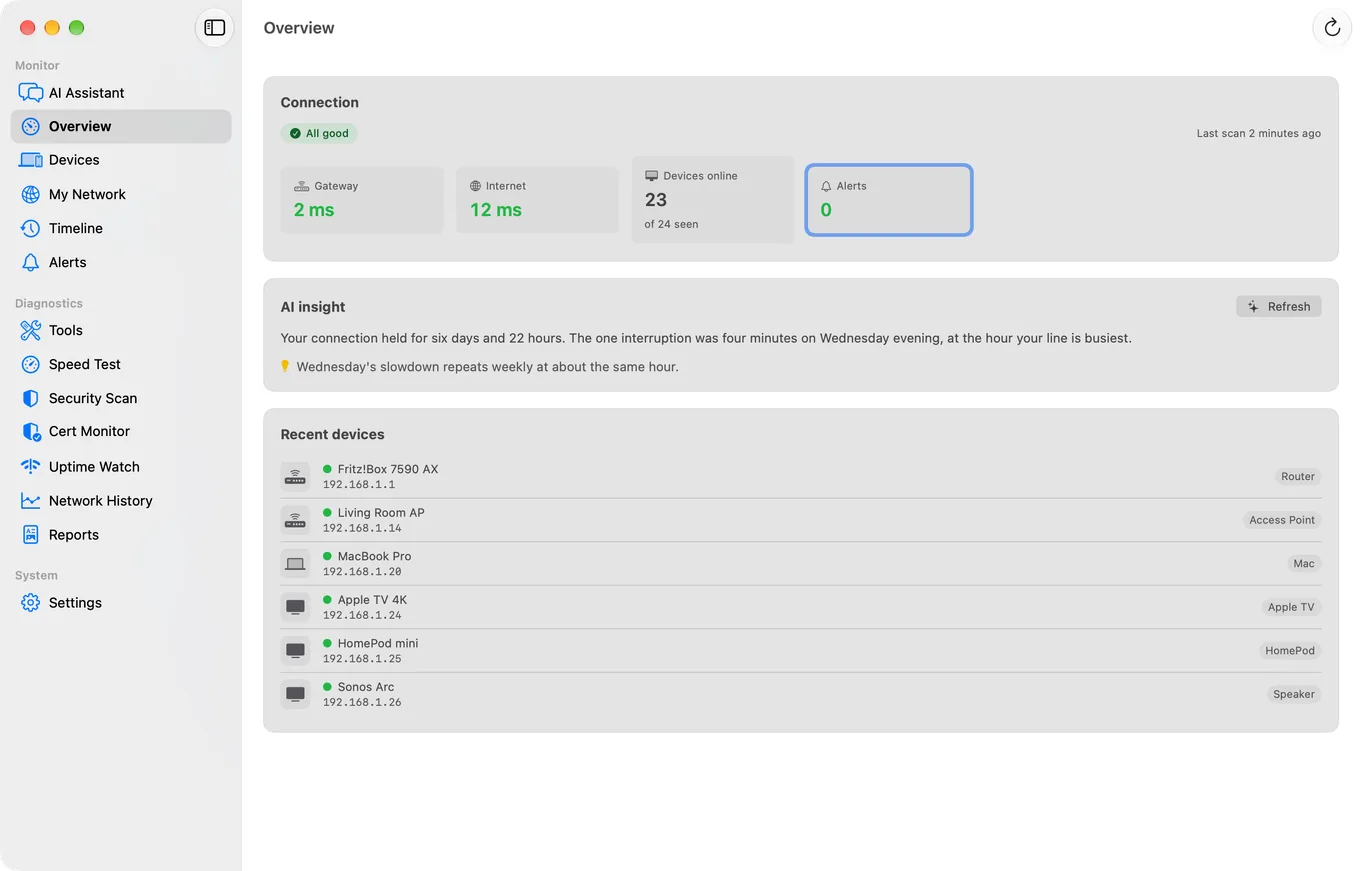
With a Guardian subscription on the iPhone ($2.99 a month or $24.99 a year), the Agent's devices, timeline and alert history also appear in the Mac Agent section of PingKit on your phone, synced through your own private iCloud account. It doesn't monitor your Mac's own resource usage or per-app traffic, and it doesn't control outbound app connections.
Fing Desktop
Fing's continuous monitoring is part of its Premium ($7.99 a month or $69.99 a year) and Professional ($16.99 a month or $149.99 a year) plans, and Fing says "Monitoring requires an active Fing Desktop, Fing Agent or Fingbox for automated scans, checks and reporting" (Fing pricing). It does the same core job as PingKit Agent, device discovery and ongoing monitoring of a network, and adds blocking and limiting a device's internet access, which PingKit doesn't offer. The trade-off is cost: Fing's free tier offers "Up to 3 scans per day" and no continuous monitoring, where PingKit Agent's monitoring on the Mac is free.
iStat Menus
The default choice if what you actually want is to watch your own Mac's resource usage. iStat Menus lives in your menu bar, and its network menu shows history graphs, current bandwidth, a bandwidth breakdown for the top apps, connection details, public and private IP addresses and an internet connectivity indicator, alongside the CPU, memory, disk and sensor data it is better known for (Bjango). It's a system monitor with a network module, not a tool for discovering or watching other devices. In the US a single licence is $11.99 and a family pack $14.99, with a 14-day free trial; major versions have been paid upgrades for existing owners. It is also included in a Setapp subscription.
Little Snitch
The established choice for a different job: seeing and controlling what your own Mac connects to. Little Snitch shows a connection alert whenever an app wants to reach the internet so you can allow or deny it, with a network monitor for live traffic and a map of where connections go (Objective Development). A licence is €59. The lighter Little Snitch Mini, from the Mac App Store, is free for the watching half (the real-time connection list, traffic diagrams and the map) and $1.49 a month or $13.49 a year to block connections (App Store). Neither is aimed at your network's devices or uptime.
One of those four costs nothing to try, and its free half is the monitoring half: scans every five minutes, keeps the device list and the timeline, and alerts on the Mac without a subscription. PingKit Agent for Mac
Which Should You Use?
- Want to see which apps are using your bandwidth right now, free: Activity Monitor's Network tab, or
nettop -P. - Want that in your menu bar with the rest of your system stats: iStat Menus.
- Want to know if a device joined your network or the internet went down, free: PingKit Agent, whose alerts reach your iPhone free. Add Guardian, on either device, if you want its device list and history on your phone too.
- Want device blocking and internet time limits too, and don't mind the cost: Fing Desktop.
- Want to control what your own Mac's apps connect to: Little Snitch.
None of these are mutually exclusive. Plenty of people run PingKit Agent or Fing Desktop for the network picture and iStat Menus or Little Snitch for what's happening on the Mac itself, since they answer different questions.
Frequently Asked Questions
What is the best network monitoring app for Mac?
It depends what you are monitoring. To see which apps are using your Mac's network, Activity Monitor's Network tab and the nettop command are built in, and iStat Menus puts the same picture in the menu bar. To watch the network itself, meaning devices, uptime and outages, PingKit Agent (free) or Fing Desktop (subscription) are built for that. To control what your Mac connects to, Little Snitch is the established tool.
How do I see which apps are using the network on my Mac?
Open Activity Monitor, in Applications, Utilities, and click Network. On macOS 27 the app lists each process with columns headed Sent Bytes, Rcvd Bytes, Sent Packets and Rcvd Packets, and the bottom of the window shows the totals for the whole Mac. In Terminal, nettop -P shows the same thing live, one line per process.
Is PingKit Agent free?
Yes. The Mac app is free, including monitoring every 30 seconds while the Mac is awake, the timeline and alerts on the Mac. A Guardian subscription on the iPhone ($2.99/mo or $24.99/yr) adds the Agent's devices, timeline and alert history to PingKit on your phone.
Does PingKit Agent show per-app bandwidth?
No. It monitors the network rather than your Mac's own traffic: devices, gateway and internet latency, drops and speed. For per-app traffic use Activity Monitor, nettop or iStat Menus.
Does iStat Menus monitor other devices on my network?
No. iStat Menus monitors your own Mac's system resources, including its network bandwidth usage, but it doesn't discover or watch other devices on your network.
Is Little Snitch a network monitoring app?
It's a network monitor in a specific sense: it shows and controls the connections your Mac's apps make to the internet. It doesn't discover devices on your local network or monitor uptime; it's a firewall and traffic inspector for your own Mac's connections.
Monitor Your Network From a Mac, Free
PingKit Agent discovers the devices on your network and alerts on new devices, outages and latency from the menu bar, free. Guardian adds the Agent's dashboard to PingKit on your iPhone.
Get PingKit Agent for MacRelated Articles
- How to Monitor Your Home Network from Your Mac
- PingKit vs Fingbox
- Is Someone Stealing My WiFi?
- Best Network & LAN Scanner Apps for iPhone
- Angry IP Scanner for Mac: Read This First
- Fing Agent Alternatives Without New Hardware
- Fing Desktop Alternatives for Mac
- LanScan Alternatives for Mac
- PRTG and Zabbix for a Home Network
- PingKit Agent for Mac
- How PingKit compares to other network tools